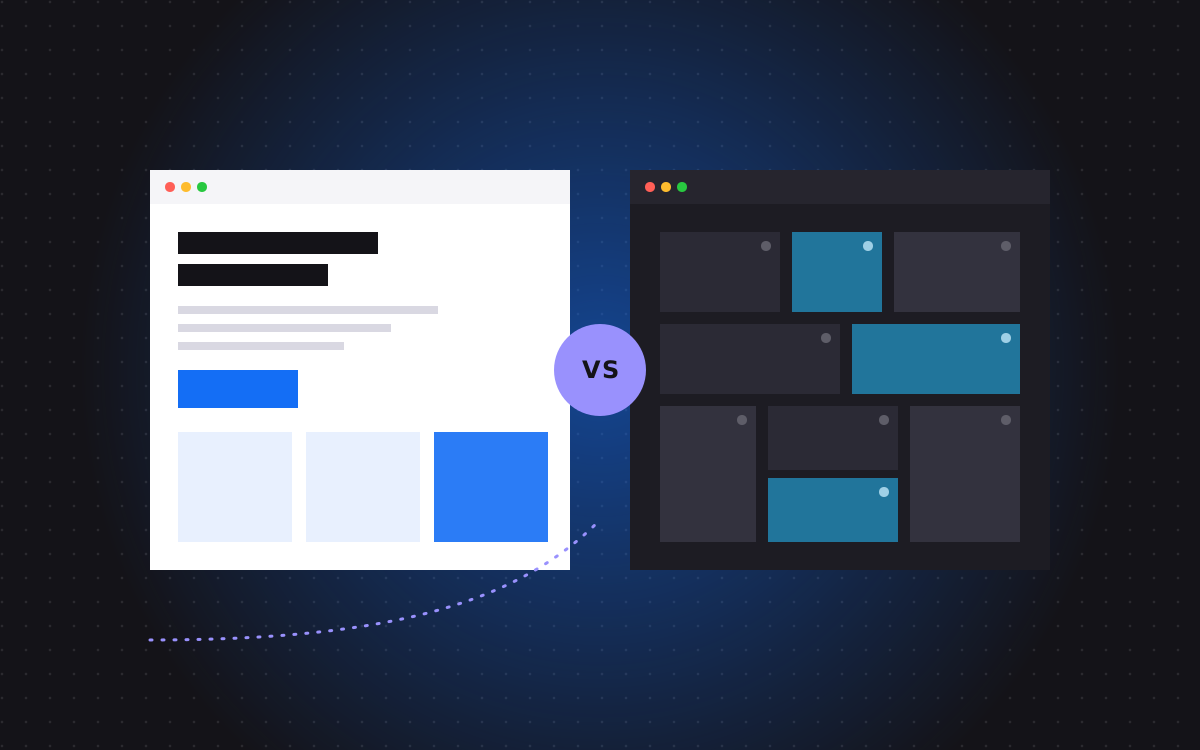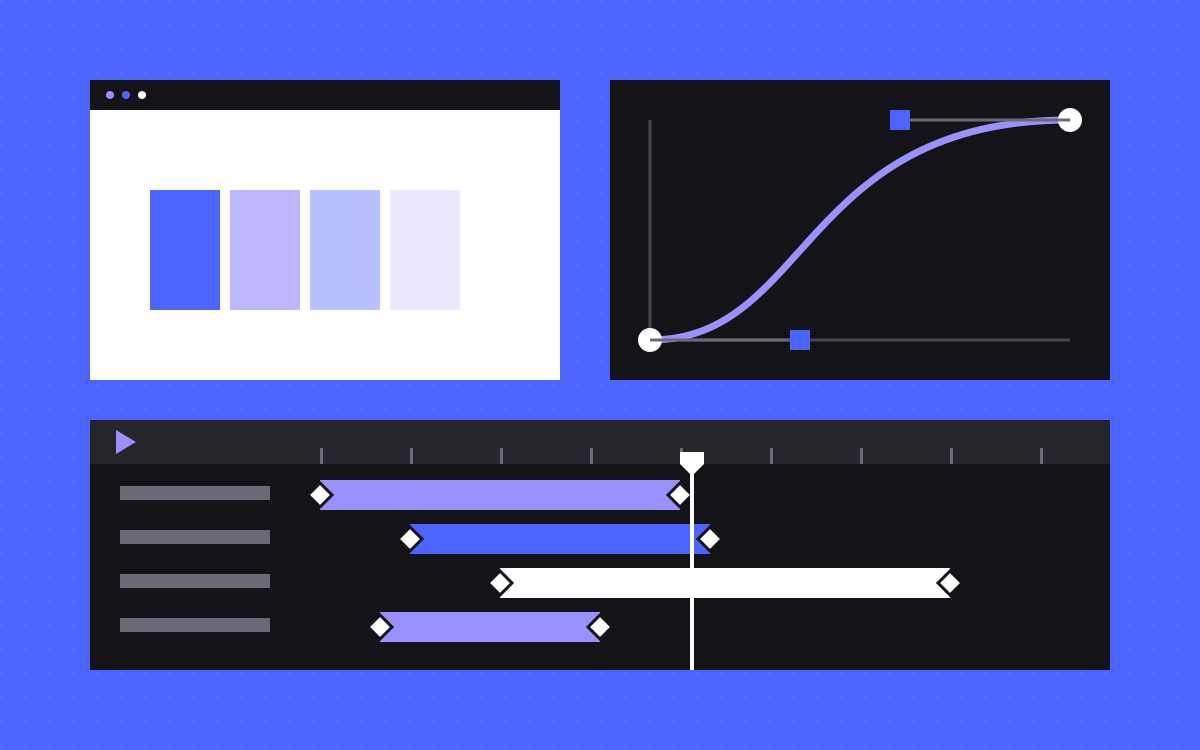
- Webflow's Interactions with GSAP gives you GSAP features in a visual panel, with no code.
- Use the panel first. It covers scroll effects, split text and staggers, and your team can edit the result.
- Write custom GSAP when the motion depends on logic: data, state, or moving between pages.
- Webflow's GSAP integration setting loads the library site-wide. Load it per page if one page uses it.
- Custom code must handle reduced motion itself, using gsap.matchMedia().
The short answer
There are three ways to use GSAP in Webflow: the visual Interactions with GSAP panel, the GSAP integration setting plus custom code, or your own script on a single page. Start with the panel. Move to custom code only when an effect depends on logic the panel cannot express. GSAP is now free, including plugins such as SplitText, so the choice is about upkeep and page weight, not licences.
The three routes side by side
| Route | How it works | Best for | Watch out for |
|---|---|---|---|
| Interactions with GSAP | Built in the Interactions panel, no code | Reveals, scroll effects, split text, staggers | Very custom logic |
| GSAP integration setting | Turn it on in site settings, tick plugins, write code | Custom motion on many pages | Loads on every page |
| Script on one page | Add the library and code in that page's settings | A single heavy page | Harder to find later, so write it down |
What the panel already does
Interactions with GSAP is the default on all sites without existing Classic Interactions. Webflow lists built-in SplitText, staggers and ScrollTrigger, a horizontal timeline and an easing editor. Split text lets you animate each letter of a heading without breaking it into separate elements by hand. It also has settings to honour a visitor's reduced motion choice.
The older Classic Interactions still exist, and Webflow's comparison lists a few things only they have, such as change events on navbars, dropdowns, tabs and sliders. Check that page if you rely on one of these.
The big plus of the panel is handover. Anyone on your team who knows the Designer can open it and change a timing. Nobody can do that with a script they cannot read.
A rule for when to write code
Ask one question: does this motion depend on something the page has to work out?
If it only plays on hover, click, load or scroll, use the panel. If it depends on data, state or the page before this one, write code. Here is how some common effects sort out:
| Effect | Route | Why |
|---|---|---|
| Heading that reveals line by line | Panel, or code if it is part of a larger script | No logic needed |
| Fade in as a section scrolls into view | Panel | A plain scroll trigger |
| Cards that glide to new places when a filter changes | Code | Positions depend on which cards remain |
| Works grid that picks one of three layouts on each visit | Code | The page chooses at load |
| Card that grows into the next page's hero, on the same video frame | Code | State passes between two pages |
The last three are from Bailey Creative Studio, where the animation runs on GSAP with ScrollTrigger and SplitText, plus Lenis for smooth scrolling. The site had to move as smoothly as the video work it shows, so custom code earned its place. Bailey can still add a project card and tag it himself. The filters build themselves from each card's category, and the code does the rest. That is a good model: logic in code, content in the Designer.
How much motion is enough
Being able to animate everything is not a reason to. On TripleDart, custom GSAP animation is kept to the moments that help: the hero, the proof cards and the product visuals. The rest stays plain CSS, so a content-heavy site stays quick.
A good habit: list each effect with the job it does for the reader. If you cannot name a job, cut it. Then look at where it runs. An effect on one landing page does not justify a library on every page of the site. For the speed side, read Webflow interactions that stay fast.
Setting up custom GSAP
- Open site settings and turn on the GSAP integration. This loads the core library. Tick only the plugins you use.
- Open the page settings and add your script in the custom code area, in the Before </body> tag section.
- Run your code after the page is ready. GSAP's Webflow guide uses a
DOMContentLoadedlistener. - Register each plugin first, for example
gsap.registerPlugin(SplitText). - Publish to your staging domain and test there.
The integration loads GSAP site-wide. If only one page uses it, add a script tag on that page instead. Webflow's developer changelog also lists custom events among the triggers for Interactions with GSAP. That can be a good middle path: the design stays visual and only the logic is scripted.
Reduced motion in custom code
The panel has a setting for this. Your own script does not, so build it in. GSAP's accessibility guide recommends gsap.matchMedia():
- Put full motion inside
mm.add("(prefers-reduced-motion: no-preference)", ...). - Put the simpler version inside
mm.add("(prefers-reduced-motion: reduce)", ...).
GSAP says to judge each case. Large swipes and fast flashing are the most likely to cause problems, and small fades are usually fine. Remove what is decoration, and keep what carries meaning, such as a progress bar, in a simpler form. Content must still be readable if the script never runs, so do not leave text hidden in CSS waiting for code to reveal it.
A handover checklist
- All custom motion lives in one documented place, with a comment for each effect.
- Scripts load only on the pages that use them.
- Only the plugins in use are switched on.
- Reduced motion is tested with the system setting turned on.
- Tested on a real phone, and with a keyboard.
- Classes and IDs that scripts rely on are listed, so nobody renames them by accident.
- Layout does not shift as elements animate in.
- The team knows which effects they can edit in the panel, and which need a developer.
What to do next
List the effects in your design and sort each one with the rule above. Most should land in the panel. Build one effect each way if you are unsure, and show both to whoever will maintain the site, because they will live with the choice long after launch. If a few need code, see motion design and Webflow development, or send us the design.

Terms used: Webflow, Webflow interactions