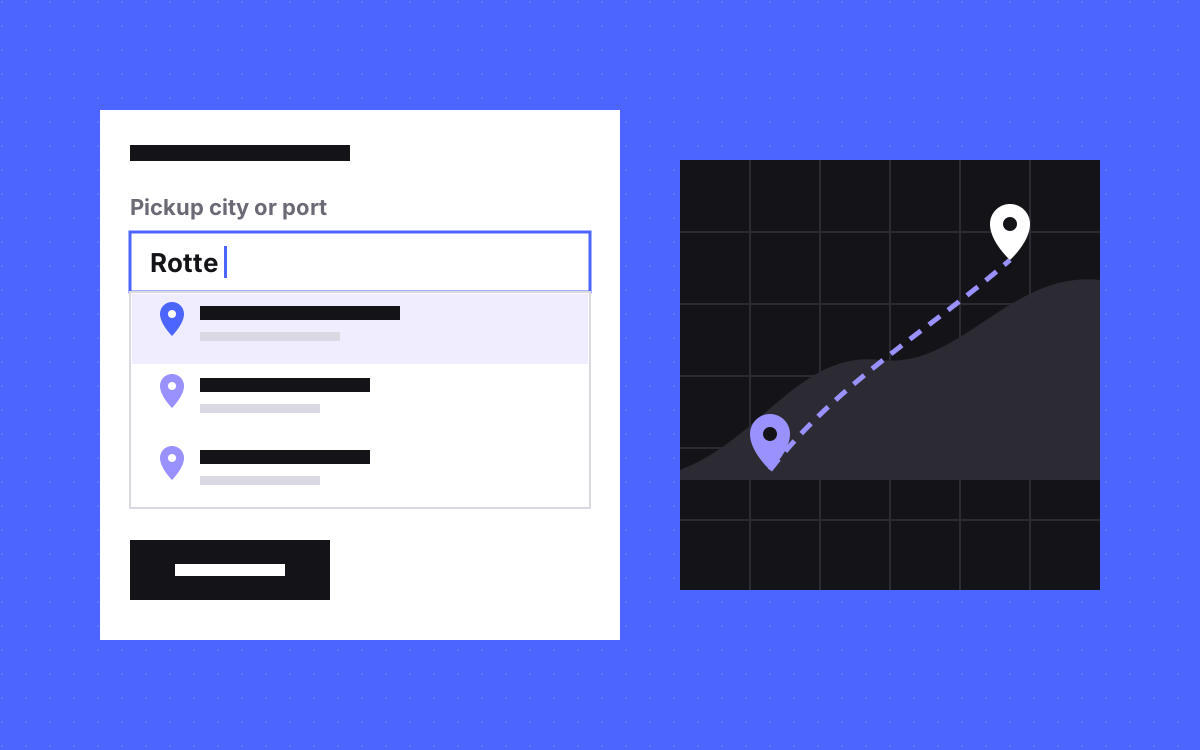
- Webflow's form fields have no place search of their own, so a small script adds suggestions to a normal text field.
- As the visitor types, the script asks a places API for matches, shows a list, and fills the field with the chosen place.
- The form then submits like any Webflow form, so notifications and integrations keep working.
- Keep the API key restricted or behind a small server function, and read the vendor's terms on storing results.
- The field must still accept typed text if the API fails, and work by keyboard and screen reader.
The short answer
Webflow forms have text, text area, checkbox, radio, select and file fields, but no place search. To add one, keep a normal text field in your Webflow form and add a small script. As the visitor types, the script asks a places API for matching places, shows them in a list under the field, and fills the field with the place the visitor picks. The form then submits like any Webflow form.
We built this for Sky2c, a logistics company whose quote form needs real, valid places.
Why it matters on a quote form
A logistics quote is only useful if the places are right. Free text gives typos, nicknames and guesses, and someone on the team then has to email back to ask. Place search fixes that at the source:
- The visitor picks from real places, so spelling stops being a problem.
- The team gets the same format every time, which makes quotes faster.
- Fewer back and forth emails before a price can be given.
If your form only asks for a country or a city from a short list, a plain dropdown is simpler. Place search earns its keep when the list is too long to show.
How it works, step by step
- A plain text field sits in the Webflow form, with a clear label such as "Pickup city or port".
- The visitor types. After a few characters, and a short pause, the script sends the text to the places API.
- Suggestions show in a list under the field.
- The visitor picks one by click, tap or keyboard. The script fills the field with the full place name.
- The form submits through Webflow as normal.
On Sky2c, the custom form calls the places API as the visitor types and fills in the chosen location, then submits like any Webflow form. Because Webflow still handles the submission, form notifications and connected apps carry on as before.
Choosing a places API
Several companies offer place search. Compare them on these points, and check each vendor's current docs and terms, because they change:
| Question | Why it matters |
|---|---|
| Does it cover your markets well? | Results vary by country and language |
| Can it limit results by type? | A freight form may want cities and ports, not street addresses |
| Must results show on a map or with a logo? | Some terms require attribution or a map |
| May you store what it returns? | Some terms limit storing place data |
| How is use counted and billed? | Each keystroke can be a request |
| Can the key be restricted? | Decides whether you need a server function |
Keep the key safe
Any key in browser code can be copied. Two options:
- A restricted browser key. Many vendors let you limit a key to your own domains. Check that yours does, and set it up before launch.
- A small server function. The form talks to your own endpoint, which holds the key and calls the vendor. More work, but the key never reaches the browser. See serverless function.
Either way, set a usage alert or cap with the vendor, so a bot filling your form cannot run up a bill.
Where the script lives in Webflow
Keep the setup easy to find for whoever looks after the site next:
- One page or many? If only the quote page has the field, add the script in that page's custom code, before the closing body tag. If several pages share the form, make the form a component and load the script site-wide.
- Find the field by an attribute, such as
data-place-search, not by a class name. Designers rename classes; an attribute set on purpose is less likely to be removed. - Load the vendor's library only when needed. Wait until the visitor focuses the field, so the rest of the page does not pay for it.
- Write it down. Note the vendor, where the key is managed, who owns the account and where the script sits. A short note in the site's handover doc saves an hour later.
If the form also needs other changes, such as several steps, see multi-step forms.
Make fewer requests
- Wait for a few characters. One letter matches half the world.
- Wait for a pause. Send the request when the visitor stops typing for a moment, not on every key.
- Drop old answers. If an earlier request returns after a later one, ignore it, or the list flickers back to old results.
- Show a handful of results. Five good matches beat twenty.
What to send with the form
The field the team reads should hold the full, readable place name. One way to go further is a second field the script fills with the place's ID or coordinates, so a later tool can work with it. Only do that if the vendor's terms allow you to store it. Name every field clearly in Webflow, because those names travel with the submission into email notifications, webhooks and your CRM.
If you track form sends as conversions, our guide to tracking forms in GA4 with Tag Manager still applies.
Make it usable for everyone
- Keyboard. Arrow keys move through suggestions, Enter picks one, Escape closes the list.
- Screen readers. Follow the combobox pattern from the W3C, so the list and the chosen option are announced.
- Touch. Suggestions need room to tap, and the phone keyboard must not hide them.
- No dead end. If the API is down or the place is not found, the visitor can still type it and send the form. Say so in a short hint under the field.
Test before launch
- Type a place with an accent or a local spelling.
- Type fast, then delete and type again. The list should match the latest text.
- Pick a place by keyboard only.
- Turn on a screen reader and pick a place.
- Block the API in the browser and send the form with typed text.
- Send a real test and check the place in the notification email and any connected app.
- Check the vendor dashboard shows the requests you expect, and no more.
What to do next
Look at the last twenty quote requests you received and count how many had unclear places. If it is more than a few, place search is worth it. See the Sky2c case study, our integrations and Webflow development pages, or send us your form and we will tell you what we would change.

Terms used: Webflow, Core Web Vitals