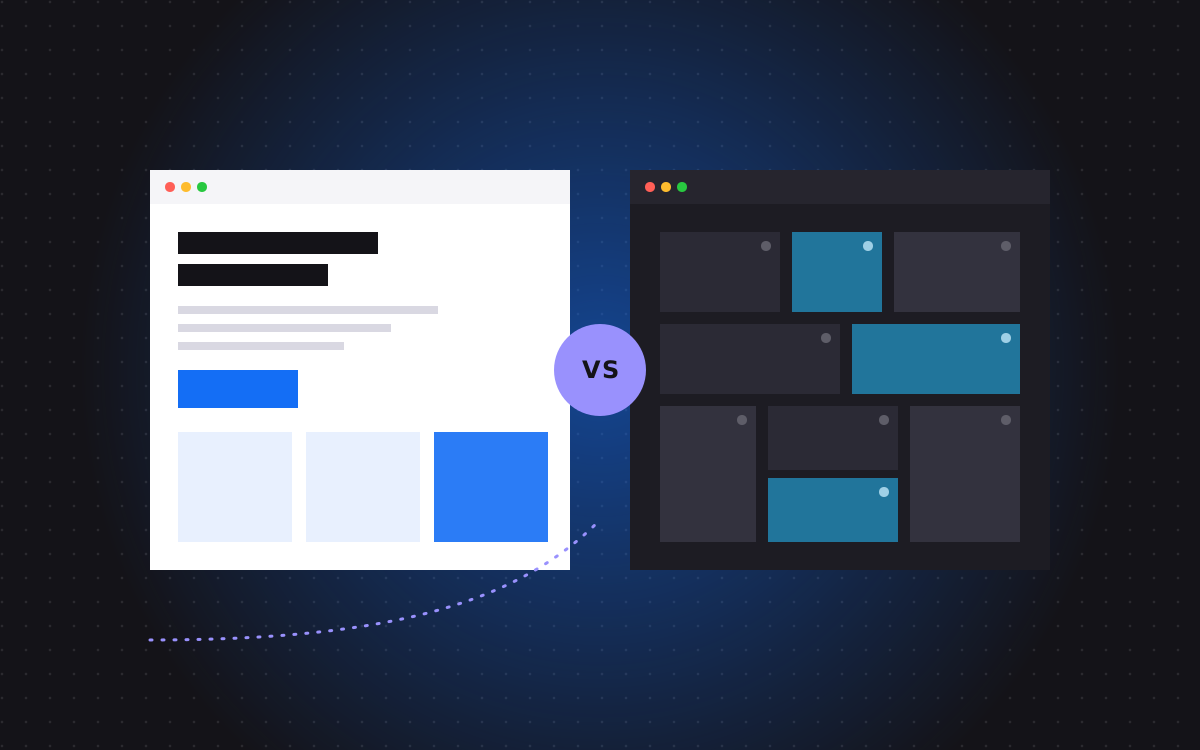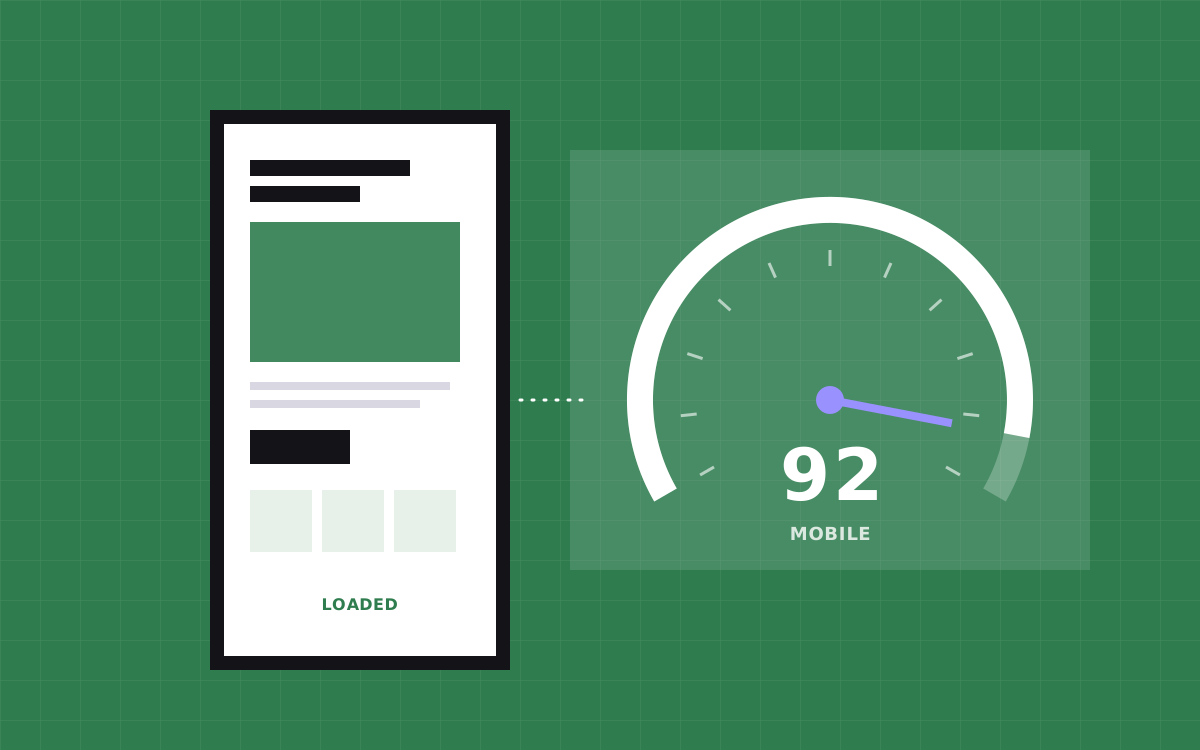
- Webflow sites can score 90 or more on Lighthouse mobile. Hosting is rarely the problem. Images, fonts, third party scripts and heavy interactions usually are.
- Our order of work: measure, fix the hero image, compress and resize every image, trim fonts, cut and delay scripts, lighten interactions, then check CMS lists and embeds.
- Lab scores from Lighthouse guide the work. Real user data in Search Console shows whether Core Web Vitals pass.
- The biggest single wins are usually a lighter LCP image, fewer fonts and moving tracking and chat scripts out of the way.
- Speed is not a one off job. New pages, apps and tags slowly slow a site down, so check key pages every month.
Webflow site speed: the short answer
Yes, a Webflow site can score 90 or more on Lighthouse mobile. Webflow hosting is fast, serves pages from a global CDN and writes fairly lean HTML and CSS. When a Webflow site is slow, the cause is almost always what was added on top: oversized images, too many font files, heavy third party scripts and complex interactions.
Our process is simple. Measure first, fix the biggest problem, measure again. In most projects, the top five fixes are the same: a lighter hero image, every image compressed and correctly sized, fewer fonts, fewer and later scripts, and lighter interactions.
This guide walks through exactly how we do it on the sites we build and maintain, in the order we do it. Our target is a Lighthouse mobile score of 90 or more on key pages, and passing Core Web Vitals for real users.
Why mobile speed is the number that matters
Desktop scores are easy. A fast laptop on office wifi forgives a lot. Lighthouse mobile simulates a mid range phone on a slower connection, which is much closer to how many of your visitors actually arrive, especially from ads and social.
Google also indexes the mobile version of your site first and uses real user data from Chrome to judge page experience. And slow pages lose people: every extra second on a landing page gives visitors another chance to give up.
So when we say fast, we mean fast on a phone, measured on mobile.
Step 1: measure before you change anything
Guessing wastes time. We start with three tools.
- PageSpeed Insights. Runs Lighthouse on mobile and shows real user data from Chrome when your site has enough traffic.
- Chrome DevTools. The Performance and Network panels show what loads, in what order, and what blocks the page.
- Google Search Console. The Core Web Vitals report groups pages that pass or fail for real users.
We test the home page, the main service or product pages, a blog post and a CMS template. Each page type has its own weak spots. We note the score and the three metrics that matter most: LCP, CLS and INP.
Lighthouse scores move a few points between runs, so we run each test more than once and look at the trend, not one number.
Step 2: fix the LCP element first
Largest Contentful Paint is the moment the biggest thing on the first screen appears. On most marketing pages, that is the hero image or the main heading. It is usually the biggest lever on the score.
- Find the LCP element. Lighthouse names it in the report.
- If it is an image, make it light. Export it at the size it displays, in WebP or AVIF, and aim for well under 200 KB on mobile.
- Do not lazy load it. Webflow lazy loads images by default. Set the hero image to load eagerly so the browser fetches it right away.
- Avoid hiding it behind an animation. A hero that fades in after a delay pushes LCP later. Let it appear at once, or animate only small details.
- Skip background videos on mobile as the main hero element, or use a light poster image first.
If the LCP element is text, the problem is usually fonts or render blocking scripts, which come next.
Step 3: compress and size every image
Images are usually the heaviest part of a page. Fixing them is boring and very effective.
- Use modern formats. Webflow can convert images to WebP or AVIF in the Assets panel. See our note on image compression.
- Upload at sensible sizes. A 4,000 pixel photo for a 600 pixel card wastes data even after compression. Webflow creates responsive sizes, but starting smaller still helps.
- Use SVG for icons and logos. They are tiny and sharp at any size.
- Lazy load below the fold. Keep lazy loading on for everything not on the first screen.
- Set dimensions. Images with known width and height do not push content around as they load, which protects CLS.
On CMS sites, we also add guidance to image fields so editors upload the right size from the start.
Step 4: trim fonts
Fonts are easy to overdo. Each weight and style is a separate file. A site using two families in four weights each loads eight files before text looks right.
- Use two families at most, and only the weights you really need.
- Prefer variable fonts where available. One file can cover many weights.
- Use WOFF2, the smallest web font format.
- Set font display to swap so text shows right away in a fallback font.
- Remove unused fonts from the project settings. Old fonts from early design rounds often linger.
This also helps LCP when the largest element is a heading.
Step 5: cut and delay third party scripts
This is where most slow Webflow sites lose their score. Analytics, ad pixels, chat widgets, heatmaps, cookie banners, review widgets and A/B testing tools all add JavaScript, and many load on every page.
- List every script. Check site settings, page settings, embeds and your Tag Manager container.
- Remove what nobody uses. Old pixels and trial tools are common.
- Load through Tag Manager where possible, and fire tags on the pages that need them, not everywhere.
- Delay the rest. Chat widgets and heatmaps can load after the page is ready or after the first scroll or click.
- Use click to load embeds for videos and maps: show a light preview and load the real player only when someone taps it.
Fewer scripts also improve INP, because the main thread has less work to do when someone taps a button.
Step 6: keep interactions light
Webflow interactions are one of its best features, and they can be fast. Problems start when every element on the page animates on scroll, or when large Lottie files and GSAP timelines load on pages that barely use them.
- Animate transform and opacity, not width, height or top, which force the browser to recalculate layout.
- Limit scroll triggered animations to the moments that matter.
- Do not hide content until JavaScript runs. Elements set to hidden on page load and revealed by an interaction can delay LCP and look broken if a script fails.
- Keep Lottie files small, and load them only on pages that use them.
- Respect reduced motion settings, for accessibility and for slower devices.
We wrote more on this in Webflow interactions that stay fast.
Step 7: check CMS lists, embeds and layout shift
A few Webflow specific things catch people out.
- Large CMS lists. A collection list showing 100 items with images is heavy. Paginate, or use a load more pattern such as Finsweet Attributes.
- Nested lists. Several nested collection lists on one page add work. Use them where they help, not everywhere.
- Sliders and tabs with many images load all of those images up front unless you plan for it.
- Layout shift. Banners that slide in, fonts that swap with very different sizes and images without dimensions all push content around. Reserve space for anything that loads late.
Cookie banners deserve a special mention. Pin them to the bottom as an overlay so they do not shift the page, and load them early but light.
Lab scores vs real users
Lighthouse gives a lab score from one simulated visit. It is perfect for finding problems and checking fixes. But Google judges page experience on field data: how real Chrome users experience your site over 28 days.
The two often differ. A page can score 85 in the lab and pass Core Web Vitals in the field because most visitors have decent phones. The reverse can happen too, for example if real visitors trigger a chat widget the lab test never sees.
We use both. Lab scores to fix and verify, field data in Search Console and PageSpeed Insights to confirm the result for real people.
A typical order of fixes on a slow page
To make this concrete, here is the order we usually work in on a slow marketing page that scores in the 50s or 60s on mobile.
- Swap the hero image for a correctly sized AVIF or WebP version and set it to load eagerly.
- Remove one or two unused tracking tags and delay the chat widget until after the first interaction.
- Drop unused font weights and switch to WOFF2.
- Replace an autoplay video embed with a click to load preview.
- Remove the hidden on load state from the hero heading so it shows at once.
- Compress the remaining images and keep lazy loading on for everything below the first screen.
Each step is small. Together they often move a page into the 90s on mobile, without changing the design your visitors see.
We run Lighthouse after each step, not just at the end. That way we know which change made the difference, and we can explain it to your team so the same mistake does not come back with the next landing page.
Our Webflow speed checklist
- Hero image under about 200 KB on mobile, WebP or AVIF, loaded eagerly.
- Every other image compressed, sized and lazy loaded.
- Width and height set on images, space reserved for embeds.
- Two font families or fewer, only the weights in use, WOFF2.
- Every third party script listed, unused ones removed, others delayed.
- Tags managed in Tag Manager and fired only where needed.
- Video and map embeds load on click.
- Interactions use transform and opacity, nothing hidden until scripts run.
- Large CMS lists paginated.
- Lighthouse mobile run more than once on key page types.
- Core Web Vitals checked in Search Console after launch.
Speed myths we hear a lot
A few beliefs come up again and again. Most of them lead people to fix the wrong thing.
Webflow is just slow. Webflow hosting is fast. A plain Webflow page with light images scores very well. Slow Webflow sites are slow because of what was added to them.
A perfect 100 is the goal. It is nice, but the jump from 92 to 100 rarely changes rankings or conversions. Passing Core Web Vitals for real users and a fast feel on a phone matter more.
Speed plugins or apps will fix it. Some help with images. None can remove a chat widget you still load on every page or shrink a 3 MB hero video. The fixes are mostly in the build.
Desktop is fine, so we are fine. Desktop scores hide problems that phones on mobile networks feel at once. Always test mobile.
Animations always hurt speed. Light, well built interactions cost very little. Heavy, constant animation and content hidden until scripts run are the problem, not motion itself.
When Webflow is not the bottleneck, and when it is
For almost every marketing site we see, the fixes above get key pages to 90 or more on mobile. Webflow itself is rarely what holds a site back.
There are limits. Webflow adds its own core script and CSS to every page, and you have limited control over how some features load. For teams that need the very last bit of performance, total control of code, or very large sites, we build in Astro with Sanity, which ships almost no JavaScript by default. Our Webflow vs Astro comparison explains the trade-off, and Webflow to Astro covers the move.
Keeping it fast after launch
Sites rarely get slower in one big step. They slow down one image, one tag and one app at a time.
That is why our Webflow care plan includes regular Lighthouse checks on key pages and fixes when scores slip. For a one off audit and fix, our SEO, AEO and GEO work covers speed alongside the rest of technical SEO.
Want to know where your site stands? Send us the URL and we will tell you the three changes that would help most.

Terms used: Webflow, Core Web Vitals