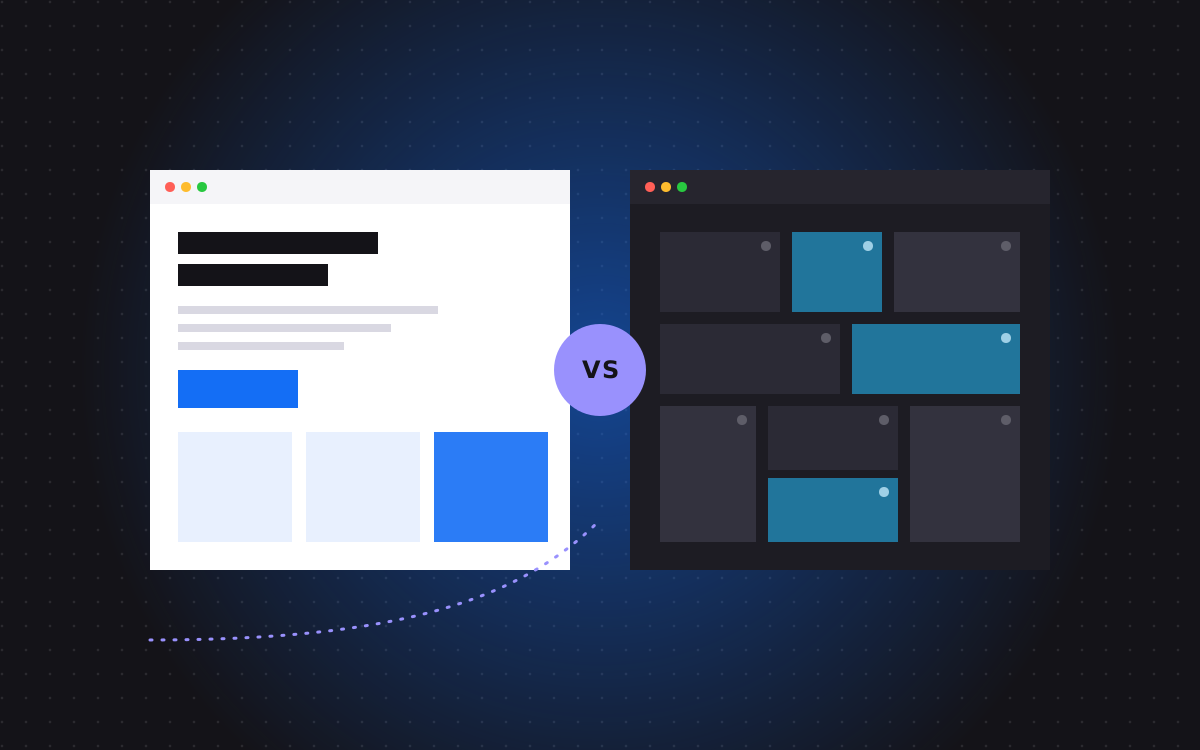
- A browser loads each page from scratch, so nothing really travels between pages. The trick is to make the hand-off invisible.
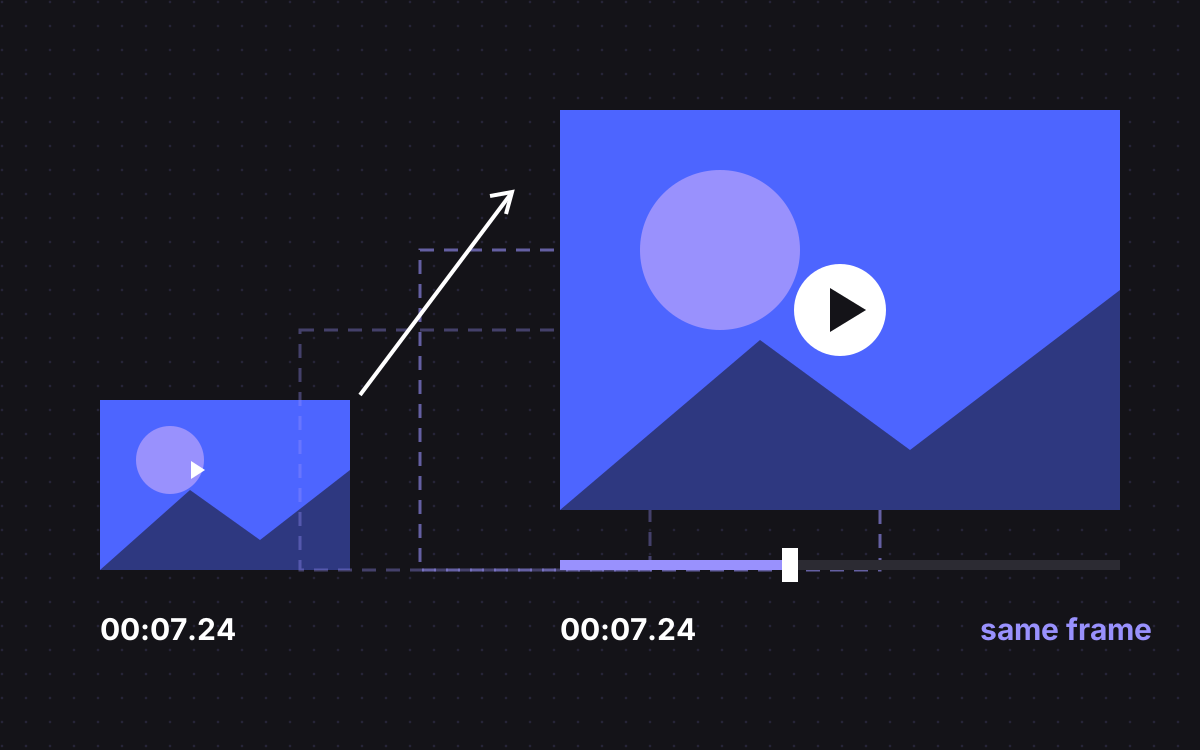
- On click, GSAP grows the card to the size and place of the next page's hero, and the video's current time goes into sessionStorage.
- The next page reads that time and starts its hero video on the same frame, so the move reads as one shot.
- GSAP says it is now 100% free for all users, plugins included, thanks to Webflow's support.
- Every link must still work as a plain link, with reduced motion and JavaScript off.
The short answer
You cannot carry a video element from one page to the next, because the browser builds each page from scratch. You can make it look as if you did. When a visitor clicks a project card, GSAP grows the card to exactly where the next page's hero will sit, the script saves the video's current time in sessionStorage, and the browser goes to the next page. That page reads the saved time and starts its hero video on the same frame. Done with care, card and hero read as one continuous shot.
We built this in Webflow for Bailey Creative Studio, a London studio whose work is mostly large video.
What we built for Bailey
- 12 pages from Figma: an outreach page, a works page and ten case studies, each with its own layout.
- Hover video on every card, with a custom "View case study" cursor.
- The card to hero transition, continuing the same video frame through
sessionStorage. - A works grid that picks one of three Figma layouts on each visit and places new projects in rows automatically.
- Filters built from each card's category prop, with cards gliding to their new places using GSAP Flip.
- SplitText on the hero, ScrollTrigger reveals, Lenis smooth scrolling.
- Bunny CDN for every video and image, to keep heavy pages fast.
GSAP is free, plugins included
GSAP's own pricing page says it is now 100% free for all users, thanks to Webflow's support, and that covers the whole library, including SplitText, Flip, ScrollTrigger and ScrollSmoother. In Webflow you can turn GSAP on in site settings or add it to a single page. Our post on using GSAP in Webflow covers which route to pick and how to set it up.
The transition, step by step
This is the order of events. Each step is small.
- Keep a real link. The card is a normal link to the case study. The script only adds to it.
- Catch the click. Stop the normal jump, but only if motion is allowed and the script is ready.
- Save the moment. Store the case study's slug and the video's
currentTimeinsessionStorage. It lasts for that tab only and is not sent to any server. - Grow the card. Measure where the hero will sit and animate the card there with GSAP, using transforms rather than width and height, so it stays smooth.
- Go. When the tween ends, send the browser to the link.
- Pick it up. On the case study, read the saved entry. If the slug matches, set the hero video's time to the saved value before it shows, then delete the entry.
- Fall back quietly. With nothing saved, as on a direct visit or a shared link, the hero plays from the start as normal.
Small details that sell the effect
- Same file, same crop. The card and the hero should play the same video with the same framing, or the jump shows.
- Same place, same size. The card should end exactly where the hero starts. Measure from the real layout, not a guess.
- Set the time before you show it. Wait until the video knows its length, set the time, then fade it in. A frame from the start of the clip gives the trick away.
- Keep it muted. Browsers block autoplay with sound, and a transition that needs a click to play is no longer a transition.
- Do not wait forever. If the next video is slow to load, show its poster frame. A blocked click is worse than a small jump.
Filters that glide with Flip
On Bailey's works page, each card takes its category as a component prop, and the filter buttons build themselves from those categories. When a filter changes, GSAP Flip moves the cards. The pattern from GSAP's Flip docs is short:
Flip.getState(cards)records where every card is.- Show and hide cards for the chosen category.
Flip.from(state, { absolute: true, onEnter, onLeave })animates from the old places to the new ones, withonEnterandonLeavefading cards in and out.
Because the categories come from the cards, the studio adds and tags a project in Webflow and the filters follow. No developer is needed for a new project.
SplitText and ScrollTrigger without the usual bugs
- Screen readers. GSAP's docs say SplitText adds an aria label to the split element by default and hides the pieces, so the heading is read as one sentence. Take care with links inside split text; the docs explain the option for that case.
- Fonts. Lines can break differently once a web font loads. SplitText's
autoSplitoption splits again when fonts finish loading or the width changes. Put your animation in theonSplitcallback so it runs on the new pieces. - Hidden text. Only hide text for a reveal from inside the script. If the script fails, the words should still be on the page.
Lenis and GSAP together
Lenis is a small, MIT licensed smooth scroll library. Its README shows how to run it with ScrollTrigger: call ScrollTrigger.update on each Lenis scroll, and drive Lenis from GSAP's ticker so both use one clock. The README also says Lenis respects prefers-reduced-motion by default and turns smoothing off for those visitors. Leave that on.
Keep heavy video pages fast
- Serve video from a media CDN, as Bailey's site does with Bunny CDN, not from the page host.
- Load a card's video only on hover or when it nears the screen. Show a poster image until then.
- Animate
transformandopacity. Our post on Webflow interactions that stay fast has the full list. - Keep the hero's first frame as an image the browser can show at once, so the largest paint is not waiting on video.
A pre-launch checklist
| Check | What should happen |
|---|---|
| JavaScript off | Cards are normal links and every page reads fully |
| Reduced motion on | No growing card, plain page change, no smooth scroll |
| Direct visit to a case study | Hero plays from the start, nothing breaks |
| Back button | Works page shows as normal, not mid transition |
| Slow connection | Poster shows, the click is never blocked |
| Filter, then click a card | Transition still lands on the right hero |
| Phone | Hover effects have a touch fallback |
What to do next
Start with one transition on your most visited path, measure the page speed before and after, and only then add more. See the full Bailey Creative Studio case study, our motion design and Webflow development pages, or send us the effect you have in mind.

Terms used: Webflow, Core Web Vitals