- Webflow Cloud is Webflow's deployment and hosting environment for web apps.
- It supports Next.js, Astro, Vite and plain static apps, deployed from a GitHub repository.
- An app can sit under your Webflow site at a path such as /app, or stand alone on its own address.
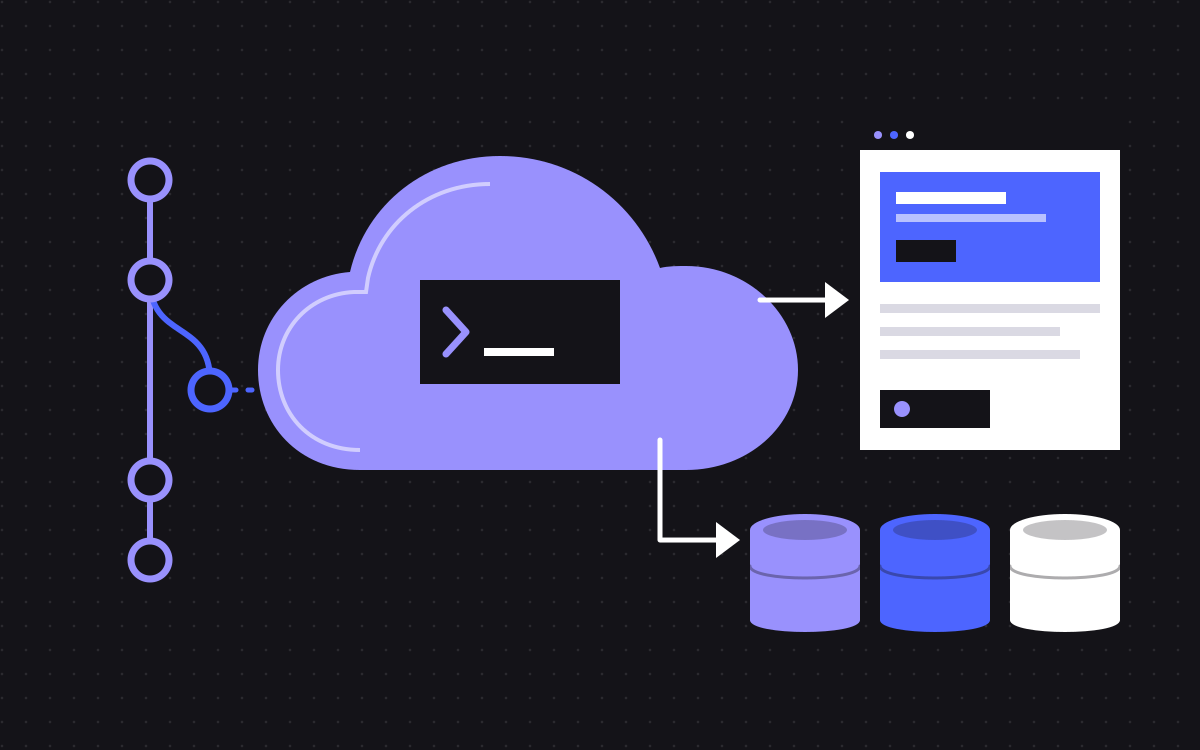
- It has separate environments tied to branches, plus SQLite, key value and object storage.
- Apps run on an edge runtime with limited API support, so existing apps may need changes. Check the docs before you commit.
The short answer
Webflow Cloud is Webflow's deployment and hosting environment for web applications. You keep your code in a GitHub repository, and Webflow Cloud builds and deploys it when the repository changes. The app can run alongside a Webflow site, or on its own. In practice, this lets marketers keep working in the Designer, while developers put real code next to the site.
This guide is based on Webflow's developer docs at the time of writing. The product changes, so check them for current details. The docs we read do not cover pricing or usage limits, so check those with Webflow too.
What you can run on it
The docs list four kinds of app:
- Next.js. Full-stack apps with server-side rendering.
- Astro. Content-focused sites that send little JavaScript by default.
- Vite. React, Vue, Svelte and vanilla JavaScript apps.
- Static. Plain HTML, CSS and JavaScript, with no build step.
Not sure about the difference? See Astro vs Next.js.
Two ways to attach an app
- Attached to a site. You create the app from the site's settings, and it is served under the site, such as
my-site.webflow.io/my-app. The path is called a mount path. - Independent. You create it from the dashboard, and it lives in your Workspace's Apps tab. It can run at a root address such as
my-app.webflow.io.
The first is what makes Webflow Cloud different from general hosting: visitors stay on one domain as they move between the Webflow pages and the app. One thing to watch is that if an app's path matches a Webflow page's path, the docs say the app takes priority. So choose a clear path such as /app.
How deploying works
The flow is familiar if you have used a modern host:
- Connect GitHub by installing the Webflow Cloud GitHub App on your account or organisation.
- Start from an Astro or Next.js template, or bring your own repository. There is also a CLI command,
webflow cloud deploy. - Choose where it runs: a new domain, or an existing site with a mount path.
- Push to the branch. Each push starts a new deployment.
According to the docs, successful deployments update an environment with zero downtime, and a failed one leaves the last working version live. Build logs are in the dashboard.
Environments, variables and secrets
Each app can have several environments, such as production and staging. Each one is isolated, tracks its own GitHub branch and has its own mount path and variables.
Some details are worth knowing early:
- Changes to environment variables apply only after a new commit triggers a deployment.
- Anyone with access to the app can view normal variables. Mark sensitive values as secrets, which are encrypted and redacted from build logs.
- Variables with a
NEXT_PUBLIC_orPUBLIC_prefix end up in the browser's JavaScript, so never put a key in one. - Deleting a branch does not remove its environment. You delete that in the dashboard.
Storage
Webflow Cloud offers three kinds of storage for apps:
- SQLite, for structured, relational data.
- Key value store, for fast, edge-cached, unstructured data.
- Object storage, for files and media.
You declare these as bindings in a wrangler.json file. If the file is invalid, the build fails. Webflow's starter repositories come in a version with these bindings already set up.
What to know about the runtime
This is the part to read before you move an existing app. The docs say Webflow Cloud deploys on an edge runtime, with limited API support. Some of what that means, according to the guide for existing apps:
- Use
fetchfor API calls. The guide says to avoid clients such as axios. - API routes need to opt in to the edge runtime, with a line of config.
- Do not hard-code a base path. Webflow Cloud sets it, and overwrites your value. Read the mount path at runtime instead.
- Plain image tags and manual fetch calls need the base path added. Auth callback URLs need it too.
- It overrides custom cache headers such as
Cache-Control, so normal header-based cache control will not work. - The guide lists Node.js 22 or later as a requirement, and 22.12 or later for Astro 6 and 7.
None of this is unusual for an edge host, but it does mean that an app with Node-only libraries can need real work. Test early.
When it can be a good fit
This part is our own view, not Webflow's. We think it is worth a look when:
- You have a Webflow marketing site and want a small tool on the same domain, such as a calculator, a portal or a gated resource.
- You want your site and that tool managed in one place.
- Your team is happy with GitHub and can maintain code.
We have used it this way. On our Paradox Machines project, a custom calculator ran on its own URL under the main domain, on Webflow Cloud, deploying from GitHub on every push.
When to look elsewhere
- You have no one to maintain code. It is still an app, so someone has to own it. Try a no-code tool such as Wized or an integration.
- Your app needs Node-only libraries, or long-running work. Check the limits page before you commit.
- You need custom cache control by way of headers.
- You only need a small script. A custom code embed may be enough.
- You want a full code-first site. Compare with an Astro or Next.js site on a general host. See Webflow vs Astro and Webflow vs Next.js.
Does it change SEO or your Webflow site?
Your Webflow pages keep working as before. Pages in the app come from your code, so plan their titles, canonicals and internal links if the app needs to rank, and check whether they appear in your sitemap. Keep app paths out of your Webflow navigation until they are ready, and check how your robots.txt treats them.
What to do next
Start with the getting started guide, and deploy a starter on a test site, before planning around it. If you want help working out whether your idea fits, tell us what you want to build, or see Webflow development and Next.js development.
More reading: Webflow hosting and headless CMS options for marketing sites.

Terms used: Webflow, Webflow Cloud