- Set the global canonical URL in Webflow to your default domain, with https, www if you use it, and no trailing slash.
- Static pages can override it with their own canonical. The global setting builds the canonical for every other page from the base URL and slug.
- Each page of a paginated list should have its own canonical. Do not point page 2 at page 1.
- URLs with tracking tags should point their canonical at the clean URL. Check yours in the page source.
- Turn off indexing for the webflow.io staging domain so it does not compete with your live site.
The short answer
On Webflow, set the Global canonical tag URL in Site settings, SEO to your site's default domain, such as https://www.yourdomain.com. Webflow then adds a canonical to every page, built from that address and the page slug. Override it on a static page only when that page is a copy of another. Give each page of a paginated list its own canonical, keep tracking links pointing at the clean URL, and turn off indexing on your webflow.io staging domain.
Then check what Google picked with the URL Inspection tool in Search Console.
What a canonical tag does
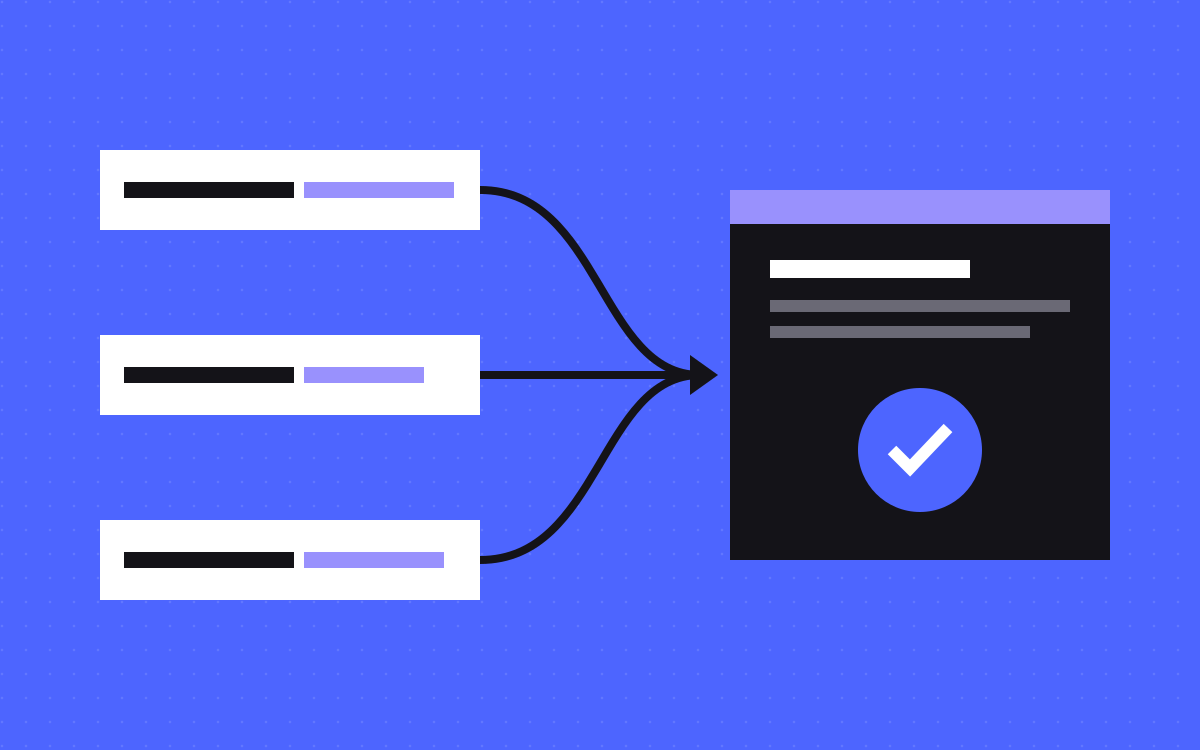
A canonical tag tells search engines which URL is the main version of a page when several URLs show the same content. Google's canonicalization guide is clear that it is a hint, not a rule. Google also weighs HTTPS, redirects and sitemaps, and may pick a different URL than you asked for.
From Google's guide to duplicate URLs:
- Redirects and
rel="canonical"are strong signals. Being in a sitemap is a weak one. - Use absolute URLs in the tag, such as
https://www.yourdomain.com/pricing. - The tag only counts in the
<head>. - Do not use robots.txt for canonicalization, and Google does not recommend noindex for choosing a canonical within one site.
- Do not send different canonicals for the same page through different methods.
To see the result, open the URL Inspection tool. It shows the User-declared canonical and the Google-selected canonical. If they differ, something is sending mixed signals.
The global canonical setting
Per Webflow's canonical tag guide:
- Go to Site settings, SEO, Global canonical tag URL.
- Enter your base URL, such as
https://www.yourdomain.com. - Save and publish.
Three details matter. Include https, or search engines may see two versions. Include www if your default domain uses it. And leave off the trailing slash, or every page's canonical gets a double slash such as //contact.
If a tool such as Google Tag Manager already adds canonical tags, Webflow says not to set the global one too. Two canonical tags on one page may both be ignored.
Static pages and CMS pages
A static page can have its own canonical: open the page settings, go to SEO settings and fill in Page canonical URL with the full address. It overrides the global setting for that page only. Webflow suggests it for landing pages, campaign pages or alternate versions that should pass credit to another URL.
CMS Collection pages get their canonical from the global setting: base URL plus the item's slug. Webflow's guide describes the per-page override for static pages, so plan for CMS items to canonicalise to themselves. If two CMS items say the same thing, fix it in the content: merge them, then redirect one to the other.
If you use a reverse proxy to serve several Webflow sites on one domain, Webflow notes you may need a global canonical other than the default domain. Set it to the public address people actually visit.
Paginated and filtered lists
When you paginate a Collection list, Webflow shows up to 100 items per page and adds Previous and Next links. Later pages get a query string. On webflow.com's own blog, page 2 is /blog?7b68c208_page=2, where the first part is an id for that list.
Google's guide to pagination says to give each page in the series its own canonical and not to use page 1 as the canonical for all of them, because the later pages hold different items. Google no longer uses rel=next and rel=prev.
We checked a few published Webflow sites and they did not all behave the same: on some, page 2 pointed its canonical at itself, on others at page 1. View the source of your own page 2 and check. If it points at page 1, your later items rely on their own links and the sitemap to be found.
Filtered or sorted versions of a list are different. Webflow's own help gives a URL with a filter parameter as an example of duplicate content. If filters add parameters to your URLs, the canonical should point at the plain list page, and those URLs stay out of your sitemap. Google's pagination guide also suggests noindex or robots.txt rules for filter and sort URLs you never want indexed.
UTM links and other parameters
Every campaign link adds parameters such as ?utm_source=linkedin. Search engines can see these as separate URLs with the same content. Google's duplicate URL guide uses a tracking URL as an example of a duplicate that should fold into the main page.
On the Webflow sites we tested with the global canonical set, a URL with a UTM tag had a canonical pointing at the clean URL, which is what you want. Check your own: open a page with a UTM tag added and look at the canonical in the page source, or paste the URL into our meta tag checker. Our glossary entry on UTM parameters covers how to build them.
The webflow.io staging domain
Every Webflow site is also published to a staging address such as yoursite.webflow.io. Left open, it is a full copy of your site on another domain.
- Turn it off for search under Site settings, SEO, Indexing by setting Staging indexing to off, then publish. Webflow says this publishes a robots.txt on the subdomain that tells search engines to ignore it, and that it needs a Site plan or a paid Workspace (Webflow on the staging subdomain).
- Set the global canonical to your live domain, so the canonical in your published pages names the live domain. View source on the webflow.io copy to confirm.
- Never link to webflow.io URLs from your live site, emails or ads.
A quick check for your site
- Open three pages: a static page, a CMS item and page 2 of a list. View source and find the canonical on each.
- Is it absolute, on https, on your default domain, with no double slash?
- Add
?utm_source=testto a URL and check the canonical drops it. - Check the webflow.io copy has indexing turned off.
- In Search Console, run URL Inspection on a few key pages and compare the declared and selected canonicals.
What to do next
Fix the global setting first, since it touches every page. Then look at paginated lists and campaign links. Canonical problems rarely show as an error; they show as the wrong page ranking, or a page that never gets indexed.
For more technical checks, read technical SEO for SaaS sites. Or let us check it for you: Webflow SEO covers canonicals, sitemaps and indexing, and you can send us your site.

Terms used: Webflow, Webflow CMS