- Sanity Studio is configured in code, so it can be shaped around how your marketing team works.
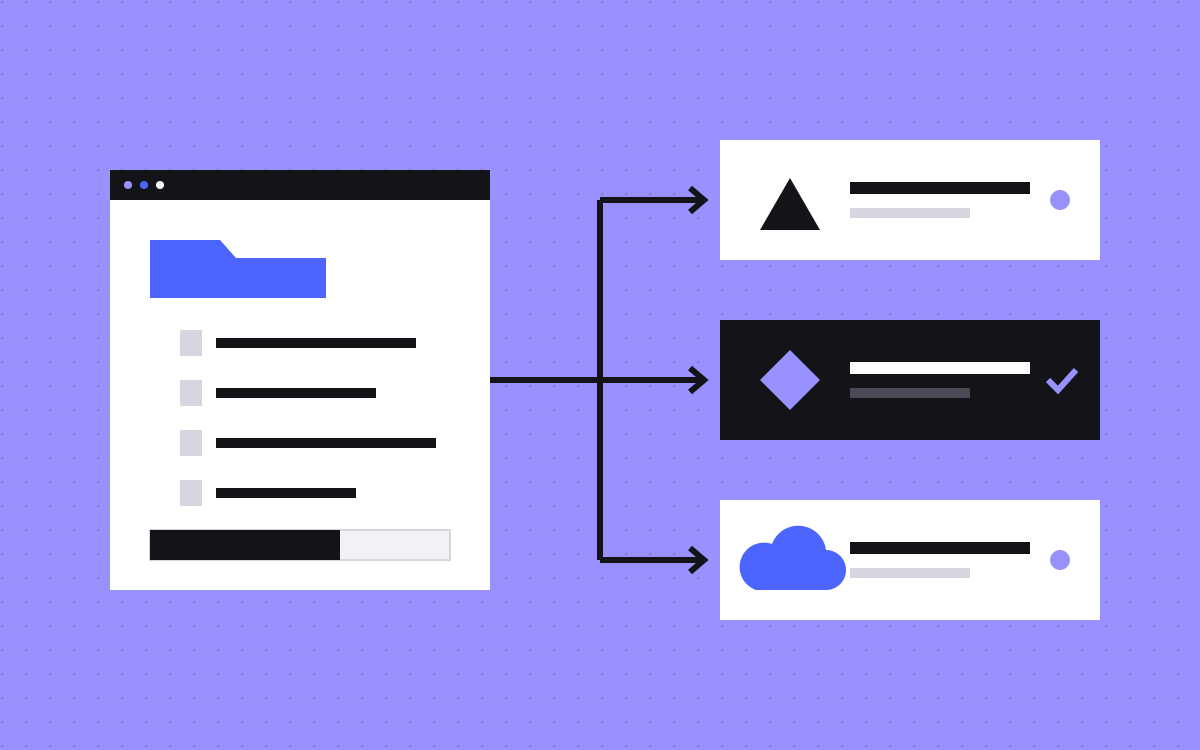
- Structure Builder controls the sidebar: group page types, pin a settings document, add filtered lists.
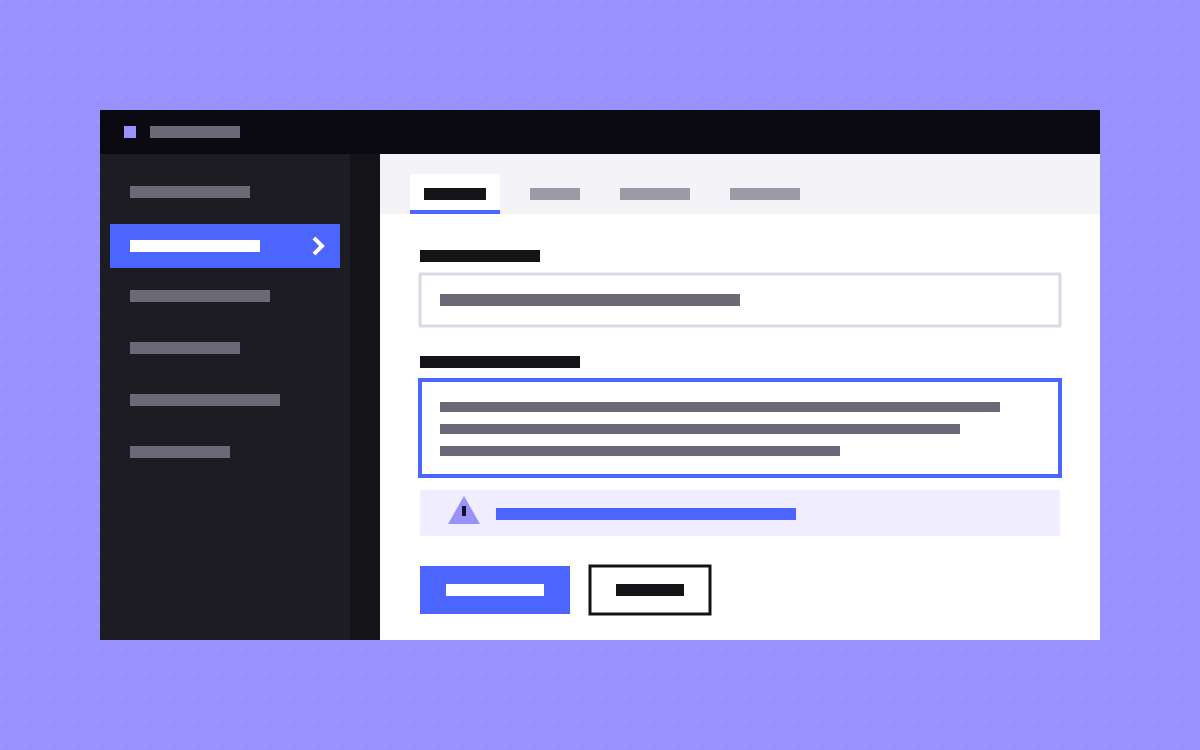
- Field groups split long documents into tabs such as Content, SEO and Media. A field can sit in more than one group.
- Validation errors block publishing until fixed; warnings only warn. Rules run in Studio, not on API writes.
- Start with structure, groups and validation. Add custom input components only for mistakes that keep repeating.
The short answer
Sanity Studio is the editing app for Sanity, and it is configured in code. That means you can shape it around your marketing team instead of asking the team to learn a generic database view. The five tools that matter most:
- Structure Builder for a sidebar that matches how the team thinks.
- Field groups to split long forms into tabs.
- Validation so mistakes are caught before publishing.
- List previews so every list shows the right title and image.
- Custom input components for the rare field that needs its own control.
Do them in that order. The first three solve most problems.
1. A sidebar that makes sense
By default, Studio lists every document type. Structure Builder lets you decide what the sidebar shows. You pass a structure function to structureTool from sanity/structure, and build lists with methods such as S.list(), S.listItem(), S.documentTypeListItem() and S.document().
A sidebar for a marketing team might look like this:
- Pages: landing pages, then a nested list for legal pages.
- Blog: posts, authors, categories.
- Proof: case studies, testimonials, client logos.
- Site settings: one document that opens straight away, for the menu, footer and default SEO.
Structure Builder can also group documents with a GROQ filter, for example a list of posts in one category. Keep it short: if the sidebar needs scrolling, it has too much in it.
2. Field groups: tabs for long forms
A landing page document can have dozens of fields. Field groups turn them into tabs. You add a groups array to the document type, each with a name and title, and an optional icon. Set default: true on the tab that should open first. Then each field gets a group property. A group can also be hidden, with a true or false value or a function, which helps when a tab only matters for one page type.
A field can belong to more than one group, by passing a list of group names. That is handy for a field like the main image, which matters both for content and for social sharing. A good default set of groups for marketing documents: Content, SEO, Social, Settings.
3. Validation that catches mistakes
Rules sit on fields, for example validation: (rule) => rule.required().min(10).max(80). Sanity's docs make two points worth knowing:
- Errors block publishing. A draft with a failing rule cannot be published until it is fixed. Add
.warning()to a rule to make it a warning instead, with your own message. - Rules only run in Studio. Content written through the API, by scripts, imports or AI tools, is not checked against them. Anything that writes through the API needs its own checks.
A useful split: errors for things that break a page (missing title, missing slug, missing alt text), warnings for things that weaken it (a meta description outside 70 to 160 characters, a heading that is very long). Custom rules with rule.custom() can check one field against another, such as an end date after a start date.
4. Previews: lists people can read
Every list in Studio shows a short preview of each item: a title, a subtitle and a media slot. Without setup, Studio guesses. With a preview key, you choose. select picks fields (including fields on referenced documents, such as author.name), and prepare() lets you reshape them.
This matters most in page builders. A list of sections that all say "Untitled" is hard to edit. A list that says "Hero: Book a demo", "Logo strip: 12 logos", "FAQ: 6 questions" is easy.
5. Custom inputs, only when needed
Studio lets you replace parts of the form with your own React components, through the components option on a schema type (input, field, item and preview), or for the whole Studio in the config. Each one receives a renderDefault function, so you can wrap the normal input instead of rebuilding it.
Our rule: build a custom input only when the same mistake keeps happening and a rule or a description cannot stop it. Examples that can earn it: a character counter that shows how a title will look in search results, or a picker that shows section layouts as thumbnails. Every custom input is code you maintain through Studio upgrades.
Worked example: one landing page document
| Field | Group | Rule |
|---|---|---|
| Internal name | Settings | Required, used in the list preview |
| Slug | Settings | Required, error |
| Sections | Content | At least one section, error |
| SEO title | SEO | Required; warning if too long |
| Meta description | SEO | Warning outside 70 to 160 characters |
| Social image | SEO and Social | Required alt text, error |
| Noindex | Settings | Off by default |
The preview shows the internal name as title and the slug as subtitle, so the team can find the page in a long list.
What we built for Slate
For Slate, we moved the site from Webflow to Astro and Sanity and built a section library in Sanity: every section of the site is a block, and pages are put together from blocks that already match the brand. We then connected AI to it through the Sanity MCP, so the AI picks sections, fills them with the content the team gives it, and hands back a staging link.
That setup depends on the Studio work above: clear section types, readable previews and rules for what each block needs. We wrote up the content side in structuring Sanity content for AI page building.
A setup order that works
- Ask two editors which documents they open most. Put those first in the sidebar.
- Move settings into one document that opens directly.
- Add field groups to any document with more than about ten fields.
- Add error rules for anything that breaks a page, warnings for anything that weakens it.
- Fix every list preview that shows "Untitled" or the wrong image.
- Write a one-line description on every field that is not obvious.
- Only then consider custom inputs.
What to do next
Open your Studio and count how many clicks it takes an editor to change the homepage hero. If it is more than three, start with the sidebar. Then ask an editor to publish a page while you watch, without helping, and write down every place they pause. That list is your setup plan. If you want help, see our Sanity CMS and section library pages, or tell us how your team edits today.

Terms used: Sanity, Sanity Studio