- Run GA4 through Google Tag Manager, and do not also load GA4 directly.
- Track a short list: lead sent, call booked, email click and main button clicks. Mark only real outcomes as key events.
- Consent rules differ by country. Choose how your tags load on purpose, and get advice for your own site.
- Save UTM values with each form, and link Search Console to GA4.
- Before launch, test with Tag Manager preview, DebugView and a real form submission.
The short answer
To get tracking numbers you can trust on a marketing site, run GA4 through Google Tag Manager, track a short list of events (lead sent, call booked, email click, main button clicks), mark only the real outcomes as key events, load tags in line with consent, save UTMs with each form, connect Search Console, and test all of it with a real form submission before launch.
The last step matters most. A setup that nobody tested can look fine for months while it counts the wrong things.
Start with the questions
Before you add a single tag, write down what you need to know. For most marketing sites, the list is short:
- How many leads did we get this month?
- Which channels and campaigns sent them?
- Which pages do people read before they get in touch?
Every event should help answer one of these. If nobody will act on a number, leave it out. A small setup is easier to test, and easier to keep correct when the site changes.
Set up GA4 through Tag Manager
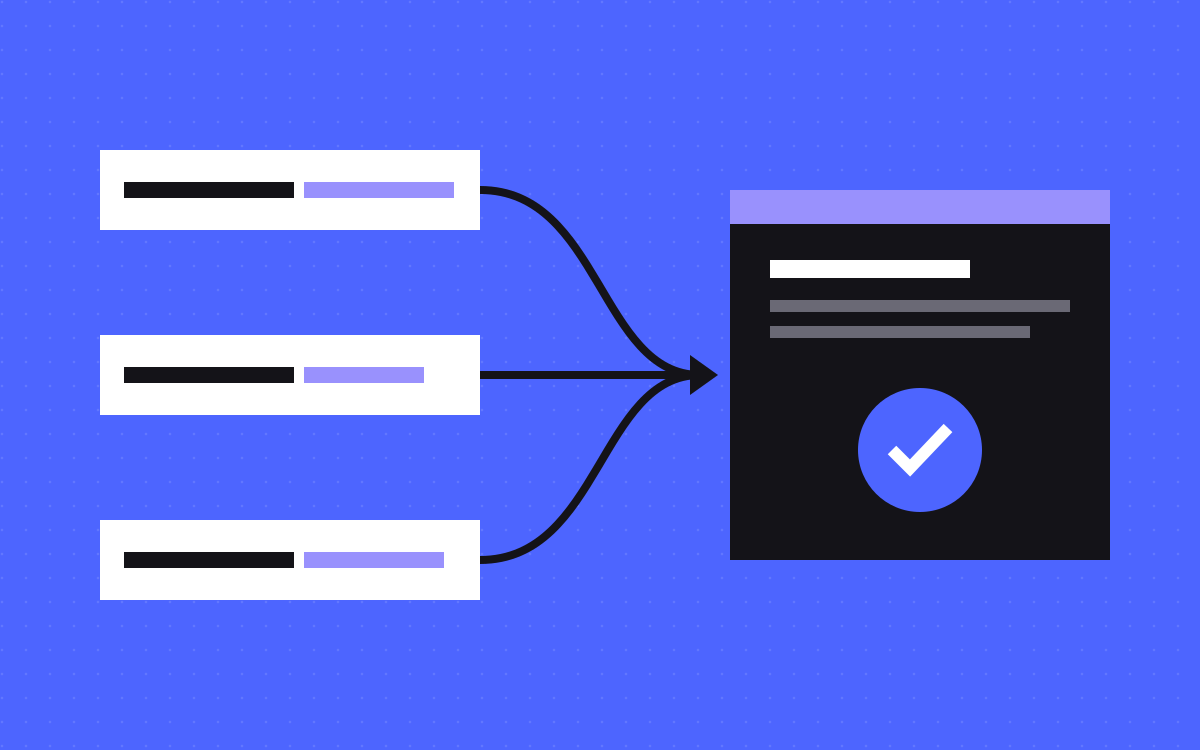
Tag Manager gives you one container on the site. GA4 and any other tags live inside it, so you can change them and test them without touching the site code each time.
- Create a GA4 property and a web data stream.
- Create a Tag Manager container and add its snippet to every page.
- Add the Google tag inside the container, with your GA4 measurement ID.
- Remove any old GA4 or gtag code from the site.
That last step is easy to miss. Google's own tagging help warns against running several Google tags or containers on one page. If GA4 is loaded directly and through Tag Manager, you risk counting visits twice.
The short list of events
GA4's enhanced measurement already collects page views, scrolls and outbound clicks, with no code. Do not rebuild those. Add only the events that show intent:
- Lead sent (
generate_lead). GA4 documents this event name for leads, so use it. Fire it when the form has really been accepted, not when someone clicks the button. - Call booked (for example
book_call). A click on a booking link shows intent. A booked call needs a confirmation from your calendar tool, so check what that tool can send. If you can only track the click, read the number as clicks. - Email click (for example
email_click). Someone clicked your email address. This is useful, but it does not prove they wrote to you. - Main button clicks (for example
cta_click). Send the button text and the link with it, so you can tell which button did the work.
Enhanced measurement also has a form_submit event. Test it on your own forms before you rely on it, because a submission and a lead that arrived are not always the same thing.
Google's policy does not allow personal data in Analytics. Keep emails, names and phone numbers out of event values and URLs.
Choose your key events
A key event is an event you mark as important to your business. In GA4 you do this in Admin, under Data display, by starting the event in the Events list.
Keep the list small. On most marketing sites, that means lead sent and call booked. Button and email clicks are useful steps, but marking them as key events makes your results look bigger than they are.
Check the counting method too. Once per event counts every time the event fires, which is why one lead must fire only one event. A change here applies to future data only.
Load tags in line with consent
Consent law differs by country, and what you need depends on where your visitors are and what your tags do. This is not legal advice, so ask someone qualified about your own site. Google also has its own EU user consent policy, which covers visitors in the European Economic Area, the UK and Switzerland.
On the technical side, Google's consent mode comes in two forms:
- Basic. Google tags stay blocked until the visitor responds to the banner. Nothing goes to Google before that.
- Advanced. Tags load straight away. While consent is denied, they send cookieless measurements. Full data follows only after consent.
On this site, Tag Manager loads only after a visitor clicks Accept. Whichever you choose, expect GA4 to show fewer leads than your inbox if some visitors are not measured. Your inbox is the true count, and GA4 is for spotting patterns.
Capture UTMs on your forms
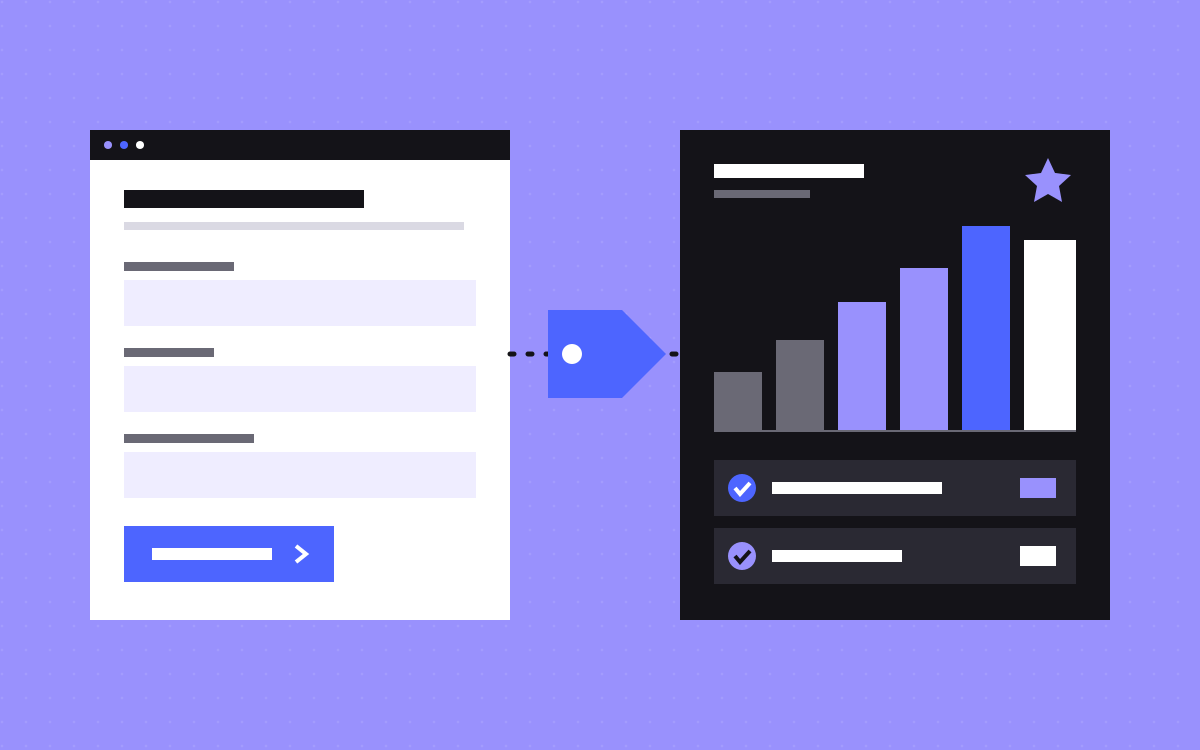
UTM parameters tell you where a visit came from. GA4 reports them in total, but your sales team needs to see them on each lead.
- When someone lands on the site, read the UTM values from the URL.
- Keep them for the session, so they survive a move to another page before the form.
- Send them with the form, in hidden fields or as part of the submission.
Tag your links with care. Google's UTM guide says values are case sensitive, so "google" and "Google" count as two sources. It suggests lowercase, and always using source, medium and campaign. If your form saves this data, say so in your privacy policy.
Connect Search Console
GA4 tells you what visitors did. Search Console tells you what they searched for before they arrived. You want both.
- Add a domain property. It covers www, non-www and subdomains, and you verify it with a DNS record.
- Submit your sitemap.
- Link it to GA4 in Admin, under Product links. The collection with the two Search Console reports is unpublished by default, so publish it from the Library.
Search Console data reaches GA4 about 48 hours after it is collected, so do not expect it on launch day.
Test it all before launch
Run this on the real site or a copy of it, and use a test email address you can spot later.
- Open Tag Manager preview. Tag Assistant shows which tags fired, which did not and which trigger was responsible. Visitors do not see any of this.
- Test consent first. Reject the banner, then browse. Check the Network tab in your browser. Then repeat before you answer at all. Your tags should behave the way you chose above.
- Accept and open DebugView. You find it in GA4 Admin, under Data display. Events do not appear here without Analytics consent, so a blank screen may just mean you have not accepted.
- Click everything. Each main button, the email link and the booking link. Check the event name and its values each time.
- Send a real form from a tagged link. The lead should reach your inbox or CRM with its UTM values, and
generate_leadshould appear once. - Try to break it. Reload the thank-you page. Send an empty form. Neither should add a lead.
- Publish the container and check again. Preview only tests your draft. Standard reports can lag, so look again the next day.
This sits alongside the other checks in our website launch checklist.
Common mistakes
- Counting a thank-you page twice. If a key event is based on a thank-you page view, a reload or the back button can count the same lead again. It gets worse if you also fire a form event for it. Pick one source for each lead.
- Events that never leave the page. Code can run with no error while nothing reaches GA4. We hit this on our own site: custom events did not arrive until they named their GA4 destination with
send_to. Seeing an event in Preview is a start. Seeing it in DebugView is the proof. - Staging traffic in reports. Load tags only on your live domain, so previews stay out. Then add GA4's internal traffic rule for your team's IP addresses, and leave the filter in Testing first. Once active, the excluded data is gone for good, as Google's filter guide explains. The same guide covers filtering developer traffic from debug mode.
- Tags firing before consent. This often comes from a script pasted into the site directly, outside Tag Manager, or a trigger that ignores the banner. Reject the banner and check the Network tab to be sure.
What to do next
Send one test lead through your site today, and see whether your reports count it exactly once. That one check shows you how much you can trust your numbers.
If you would rather hand this over, our analytics and tracking service starts from $500 and covers GA4, Tag Manager, conversion events and consent setup. You can also send us your site and we will tell you what we would check first.

Terms used: Google Tag Manager, Core Web Vitals