- AI visits are in GA4 already. Open Traffic acquisition and look at Session source / medium for names such as chatgpt.com.
- Google's default channel group has an AI Assistant channel, but its help page does not show the full list of tools behind it.
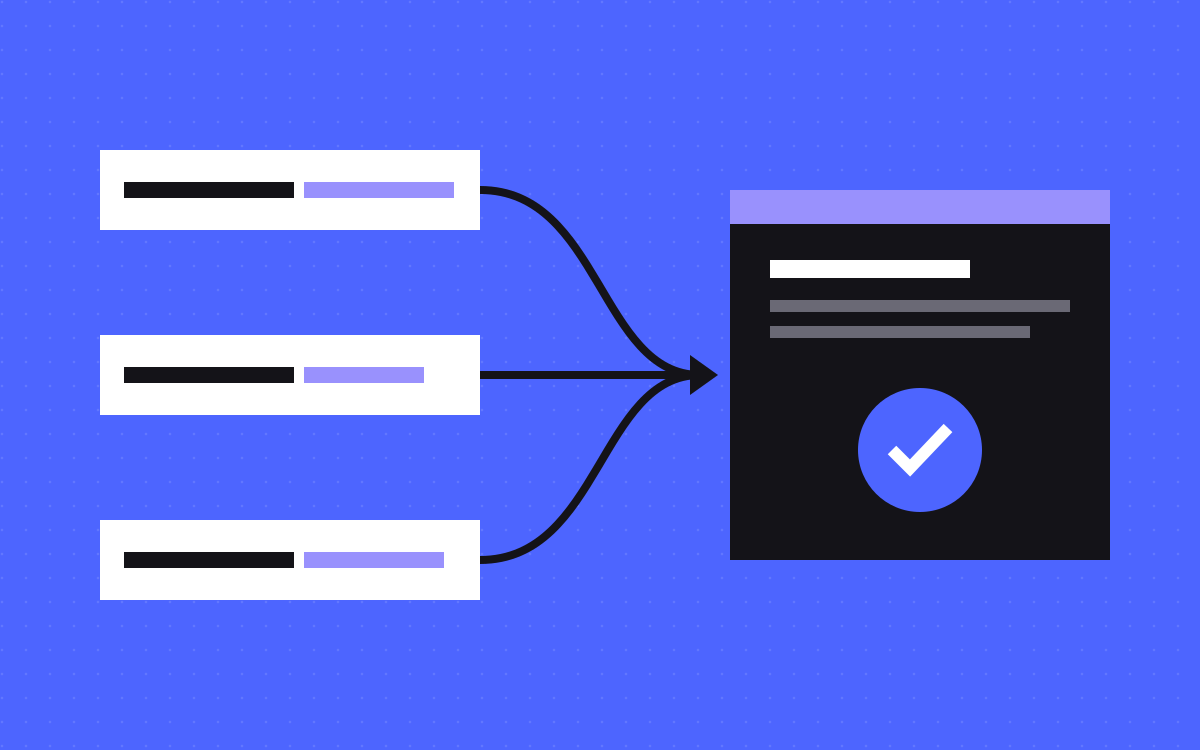
- A custom channel group with an "AI assistants" channel, placed above Referral, puts the tools you choose in one row.
- Custom channel groups can be applied to past dates, and they work in reports and explorations, so you can see landing pages too.
- The figure is a floor. Visits with no referrer count as direct, and answers with no click are not visits.
The short answer
To see AI traffic in GA4, open Reports, then Acquisition, then Traffic acquisition, and switch the table to Session source / medium. Visits from AI tools show up there under names such as chatgpt.com or perplexity.ai. To keep them in one row, add an "AI assistants" channel to a custom channel group, with a regex on the source, and place it above Referral. Then use that group in your reports and in an exploration with landing pages.
The number you get is a floor. Visits that arrive with no referrer are reported as direct, and an AI answer that nobody clicks never reaches your analytics.
Where AI visits show up today
GA4 records each session with a source and a medium. Google defines Session source as the site that referred the session. For a click from an AI tool, that is the tool's hostname.
The medium is the part that has changed. Google's default channel group now lists an AI Assistant channel, described as visits from sources like ChatGPT, Gemini, Deepseek, Copilot or Grok. The rule on that page: the medium is set to ai-assistant when the referrer matches Google's list of AI assistants. Anything that is not on the list still follows the Referral rule, where the medium is referral.
So in your own property you may see both:
| What you see in Session source / medium | What it means |
|---|---|
An AI hostname with ai-assistant | Google matched the referrer to its own list |
An AI hostname with referral | A click from a tool that is not on Google's list |
(direct) / (none) | No clear source, which can include AI visits |
Two notes. The help page does not print the full list, so do not assume every tool is covered. And Google states that the AI Assistant channel excludes its own AI Overviews and AI Mode. Those belong to Search, and we cover them in measuring AEO when clicks disappear.
Step 1: look before you build
- Open Reports, Acquisition, Traffic acquisition.
- Change the main column of the table to Session source / medium.
- Set the date range to the last 90 days, so small sources have time to add up.
- Scan the list for AI tools, and write down each hostname exactly as GA4 shows it.
- Change the main column to Session default channel group and see if an AI Assistant row is there.
This takes five minutes and it tells you which hostnames your own site gets. That list is what the next step is built from. A pattern copied from a blog, this one included, is a guess until you have checked it against your data.
Step 2: build a custom channel group
A channel group is a set of rules that sorts traffic into named channels. Google's help page on custom channel groups includes an AI assistants example, and the steps below follow it. You need the Editor role or above on the property.
- Go to Admin. Under Data display, open Channel groups.
- Click Create new channel group. It starts as a copy of the default group. Give it a clear name, such as "Kookies channels".
- Click Add new channel and name it "AI assistants". If the copy already has an AI channel, edit that one instead of adding a second.
- Add a condition group. Choose Source, pick "matches regex", and paste your pattern.
- Save the channel. Then click Reorder and drag "AI assistants" above Referral.
- Click Apply, then Save group.
The order is not a detail. Google says traffic goes into the first channel whose rule it matches, in the order shown. If Referral sits higher, it takes those visits first, and your new channel stays empty.
Limits from the same page: a standard property can have 2 custom groups on top of the default one, with up to 50 channels in each.
A regex to start from
This is our own starting point. It is not an official list, and it is not complete:
.*(chatgpt\.com|chat\.openai\.com|perplexity\.ai|claude\.ai|gemini\.google\.com|copilot\.microsoft\.com|deepseek\.com|grok\.com).*
How to read it: each name between the bars is one hostname, the backslash makes a dot mean a real dot, and the .* at each end allows for anything before or after, such as a subdomain.
Change it to fit what you saw in step 1. Remove names that never appear, and add the ones that do. Google's own example on the help page uses a different, wider pattern that begins with ^.*ai. That part is not tied to one tool, so if you copy it, check which sources it catches on your site. Google also notes that you should update the regex when the tools or their URLs change. A reminder twice a year is enough for most sites.
Step 3: use the group in reports
Go back to Reports, Acquisition, Traffic acquisition. In the main column menu, choose your new channel group. Each channel is now a row, and "AI assistants" is one of them. Google says the group works as a primary or secondary dimension in the User acquisition and Traffic acquisition reports.
Two things make this more useful than it sounds:
- It works on past dates. Google states that custom channel groups can be applied to reports retroactively. You do not have to wait a month for data.
- It does not change what is collected. The group is a way of viewing sessions. If you get a rule wrong, fix it and look again.
For a quick check, add Session source as a second column next to the channel. You should see only AI hostnames in the "AI assistants" row. If something else is in there, the pattern is too wide.
Step 4: see which pages they land on
Counting visits is the start. The useful question is which pages AI tools send people to. For that, build an exploration.
- Click Explore in the left menu and create a blank exploration. The default technique is a free form table.
- In Variables, add these dimensions: your custom channel group, Session source, and Landing page + query string.
- Add these metrics: Sessions, Engaged sessions and Key events.
- Drag Landing page + query string and Session source into the table, and the three metrics into Values.
- Add a filter so that your channel group is "AI assistants".
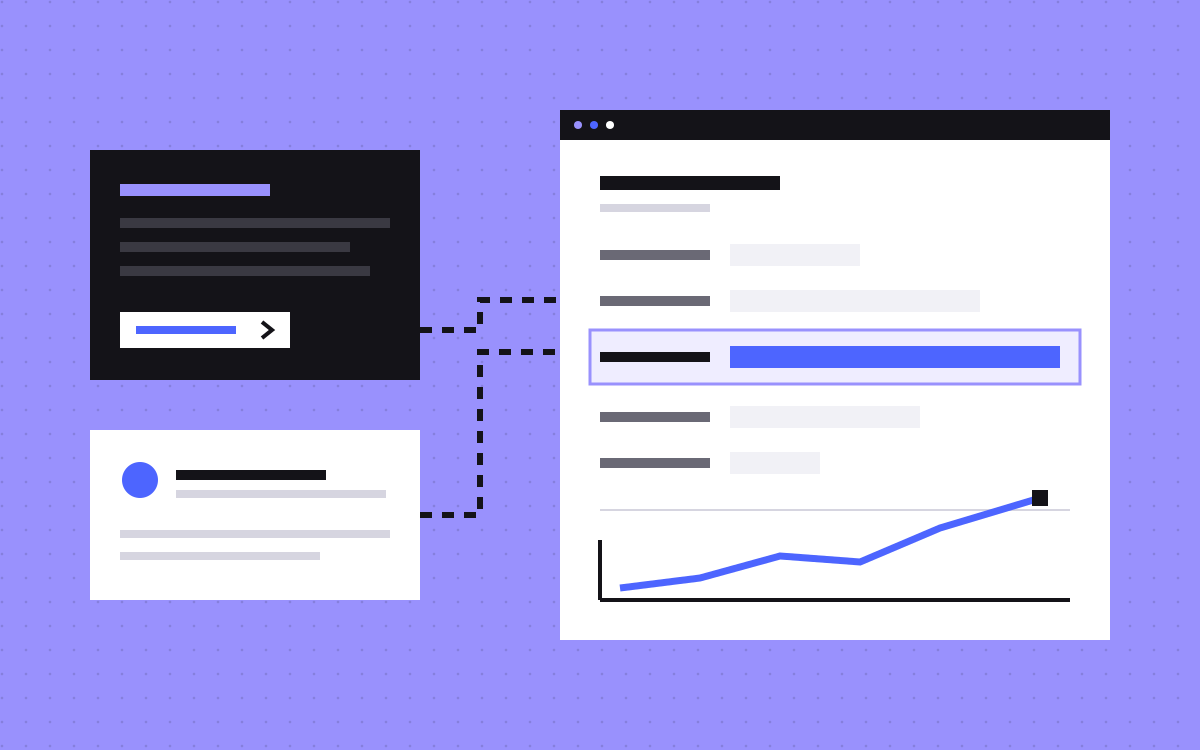
Google defines Landing page + query string as the page path and query string of the first page view in a session. So each row is a page that an AI tool sent someone to, with the tool next to it.
One setting to know: the same help page says properties keep 2 months of data for explorations by default. You can change that under Admin, Data collection and modification, Data Retention. If the exploration looks empty for older dates, this is the likely reason.
What to do with the landing pages
| What you see | What to try |
|---|---|
| One guide or post gets most AI visits | Keep it correct and current, and add a clear next step on the page |
| Visits land on an old or thin page | Update it, or point people to the better page from it |
| Visits but no key events | Check the page answers the question, then check the form or booking link is tracked |
| Your main service pages never appear | Check they can be read: run the AEO score tool on them |
Key events only mean something if they are set up. If form sends and booked calls are not marked as key events yet, do that first. Chapter 4 of our Marketing Site Tracking Playbook covers which events to track, and the GA4 audit post helps you check the numbers are right.
What GA4 cannot show you
- Visits with no referrer. Google says (direct) / (none) is traffic with no clear referral source. If a link from an AI tool opens without passing a referrer, GA4 has nothing to match, and the visit is counted as direct. No channel rule can bring it back.
- Answers with no click. If a tool names you and the person does not click, there is no session. A mention is not a visit.
- Later visits. Someone may read an answer today and search for your name next week. That shows as search or direct.
- Blocked tracking. Google's page also lists ad blockers as a cause of (direct) / (none).
- Google's own AI features. AI Overviews and AI Mode are outside the AI Assistant channel.
- Crawlers. GA4 counts people in browsers. A bot that reads your page to build an answer is a different thing from a person who clicks through.
On that last point, being readable comes first. In our study of AI crawlers and robots.txt (Forbes Cloud 100, checked 9 November 2026), of the 94 companies whose robots.txt we could read, 94% let every AI crawler we checked read their home page, and 6 of 94 block at least one AI crawler.
So treat the "AI assistants" row as the smallest your AI traffic could be, not as the total.
What to do next
Do step 1 today, since it needs no setup. Build the channel group this week, save the exploration, and look at it once a month next to your leads. If you would like the tracking set up and checked for you, see analytics and tracking or get in touch. We set up GA4 and Tag Manager on the Webflow and Astro sites we build.

Terms used: Core Web Vitals, AEO