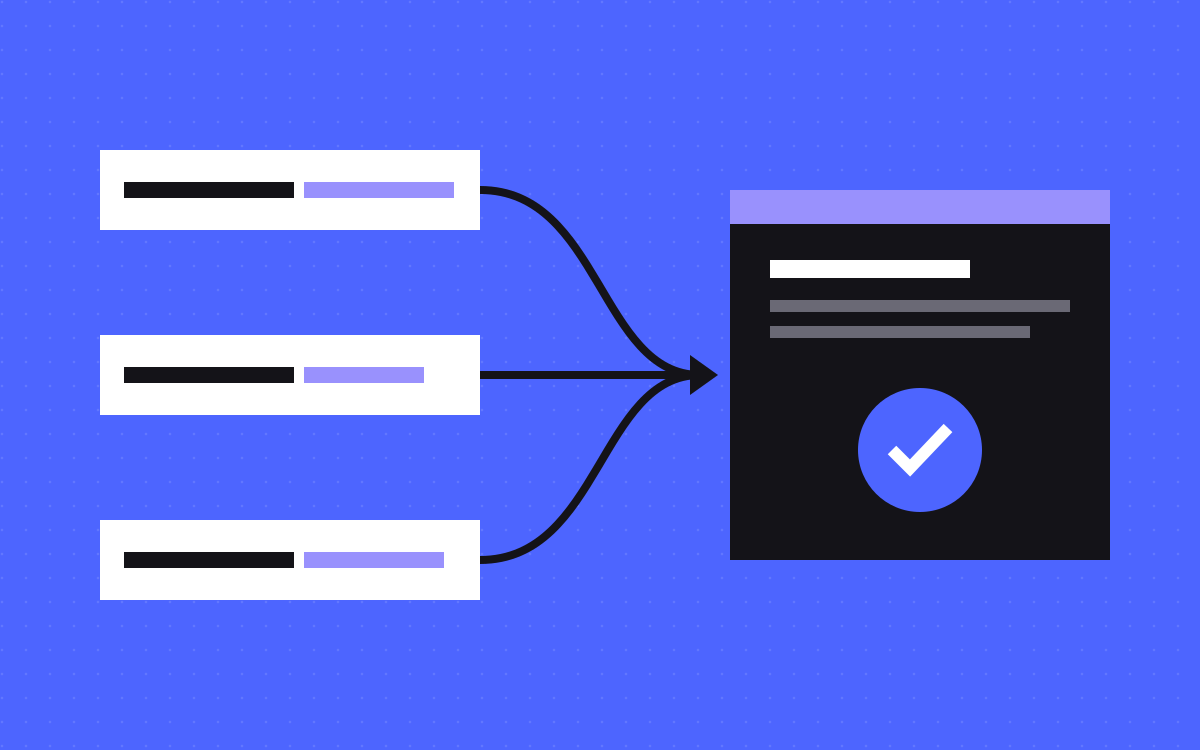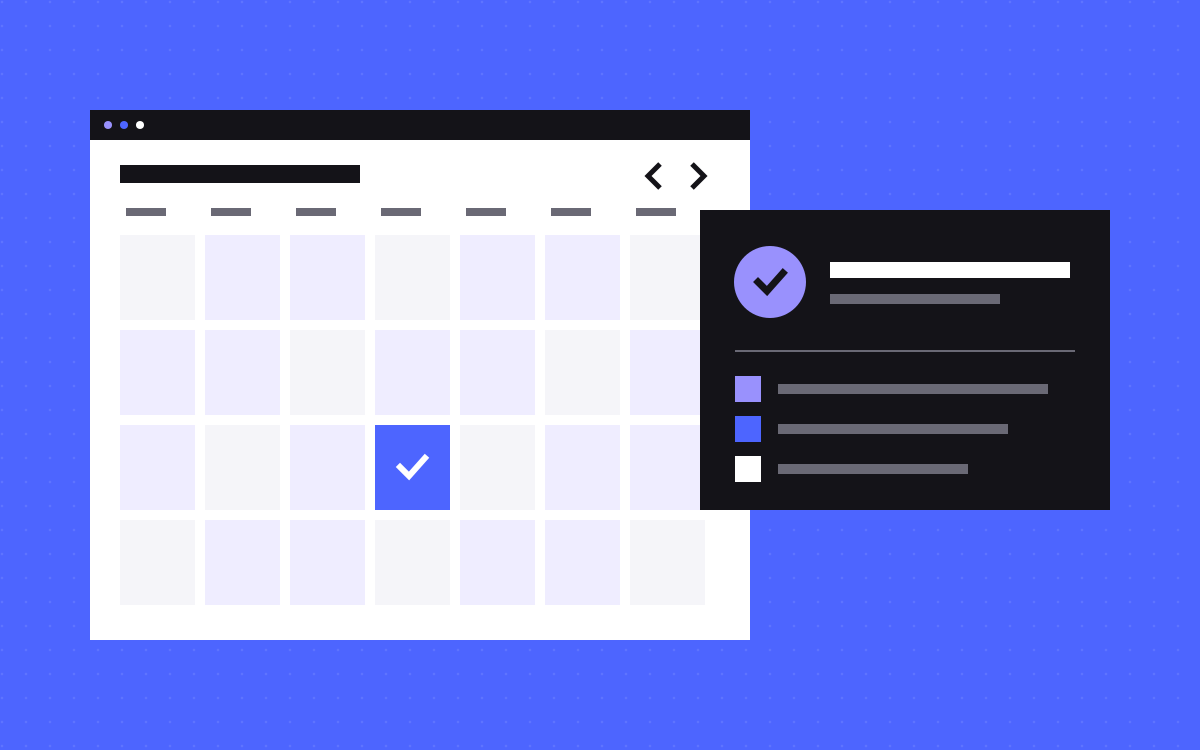
- A click on a booking link shows intent. Only a signal from the booking tool shows a booked call.
- Cal.com: listen for bookingSuccessfulV2 on an embed, or connect its Google Tag Manager app.
- Calendly: use its Google Analytics connection, or listen for calendly.event_scheduled on a JavaScript embed.
- A redirect to a thank-you page works too, but keep names and emails out of the URL.
- Use one route per calendar, test with a real booking, and treat your calendar as the true count.
The short answer
To track booked calls in GA4, send an event from the moment the booking succeeds, not from the click on your button. With Cal.com, listen for bookingSuccessfulV2 on an embed, or connect its Google Tag Manager app. With Calendly, connect Google Analytics and use its calendly.event_scheduled event, or listen for that message on a JavaScript embed. Then mark the event as a key event and compare it with your calendar each month.
Vendors change these features, so check the current docs linked below before you build. This post assumes GA4 and Tag Manager are in place, as covered in our tracking setup guide.
Click, visit or booking?
Three signals get called "calls", and they mean different things.
| Signal | What it proves | Name it |
|---|---|---|
| Click on a booking link | Someone wanted to look at your calendar | book_call_click |
| Date and time picked | Someone got most of the way there | Optional step event |
| Booking made | A call is in the calendar, subject to approval rules | call_booked |
Our own site's book_call event fires on a click on a Cal.com link, so we read it as clicks, not as calls booked. That is fine as long as nobody reports it as bookings. If you only have the click, label it honestly.
Choose your route
| Your setup | Route | Effort |
|---|---|---|
| Cal.com embedded on your site | Embed listener, data layer, Tag Manager | A few lines of code |
| Cal.com, tags managed in Tag Manager | Cal.com's Google Tag Manager app | No site code, some Tag Manager work |
| Calendly embedded, want it simple | Calendly's Google Analytics connection | Low |
| Calendly JavaScript embed, want your own event name | Message listener, data layer, Tag Manager | A few lines of code |
| Plain link to a hosted booking page | Redirect to your thank-you page | Low, but check your plan |
A plain link sends people to another domain, which makes source reporting harder to get right. If you care about the source of each call, embedding on your own page is usually simpler to measure. Pick one route per calendar, because two routes can count one booking twice.
Cal.com: listen on the embed
Cal.com's embed events page lists bookingSuccessfulV2 for a new booking. Add this after your embed code:
Cal('on', {action: 'bookingSuccessfulV2', callback: function (e) { window.dataLayer = window.dataLayer || []; dataLayer.push({'event': 'call_booked', 'booking_status': e.detail.data.status}); }});
If your embed uses a namespace, call Cal.ns.yournamespace('on', ...) instead. Then:
- Create a Custom Event trigger for
call_bookedin Tag Manager. - Create a Data Layer Variable for
booking_status. - Create a GA4 Event tag named
call_booked, with the status as a parameter.
Two details from the docs matter here. The event fires when the booking succeeds, but the booking "might not be confirmed", so if your event type needs approval, decide whether a pending booking counts. And the same page lists separate events for reschedules, cancellations and test-mode bookings, so a reschedule should not add a call.
Cal.com: use the Tag Manager app
Cal.com's booking analytics guide is clear on one point. Its analytics apps, such as Google Analytics, only add the tracking snippet to public booking pages. Booking events go only through the Google Tag Manager app.
- Connect the Google Tag Manager app in your Cal.com account, with your container ID.
- In Tag Manager, create a Custom Event trigger for
bookingSuccessfulV2. - Create a GA4 Event tag that fires on that trigger.
- Use preview to confirm the event arrives.
The docs point to a community guide for the full walkthrough, so check the current page before you start.
Calendly: the built-in connection
Calendly's embed tracking guide works like this:
- Confirm Google Analytics works on your site.
- Connect Calendly to Google Analytics, following its current steps.
- Add the embed to your page.
- Add
utm_source,utm_mediumandutm_campaignto the Calendly link if you want source data on it. - Book a test call and look in GA4's Realtime report.
Calendly lists four events: calendly.profile_page_viewed, calendly.event_type_viewed, calendly.date_and_time_selected and calendly.event_scheduled. Only the last is a booking. Its guide says full results can take 24 to 48 hours. It also says visitors in some regions see a cookie banner in the embed, and that some activity may not be tracked if they reject it. This is not legal advice, so check what your own consent setup needs.
Calendly: your own listener
If you want your own event name and control in Tag Manager, use the message events. Calendly says plain iframes do not support this, so use its JavaScript embed.
window.addEventListener('message', function (e) { if (e.origin === 'https://calendly.com' && e.data.event === 'calendly.event_scheduled') { window.dataLayer = window.dataLayer || []; dataLayer.push({'event': 'call_booked'}); } });
The origin check is from Calendly's own example, and you should keep it. Then build the same trigger and tag as in the Cal.com route. Calendly's developer docs show this message carries only links to the event and the invitee, not names or emails. Do not send those links to GA4. Use one route only: if the built-in connection is on as well, you will see two events for one call.
The thank-you page route
This route has no embed to deal with. After booking, the tool sends the person to a page on your site, and a Page View trigger on that URL fires your tag.
- Calendly. Its redirect setting sits in the event type, under More options, then Confirmation page. The article lists the plans that include it, so check yours.
- Cal.com. The API reference has a
successRedirectUrlfield for sending the booker to a URL once the booking completes. Check the current docs for how to set it on your account.
Be careful with Calendly's Pass event details option. It can add the invitee's name and email to the URL, and your tags read URLs. Google's policy does not allow that data in Analytics. Leave the option off unless you truly need it, and if you do, strip those values before any tag runs.
Also keep the thank-you page out of search, and remember that a reload can count again, so test for it.
Test it with a real booking
- Open Tag Manager preview and DebugView, and accept your consent banner.
- Arrive through a tagged test link, so you can check the source.
- Book a real call on a test event type, then look for one
call_booked. - Reschedule it. The count should not change.
- Cancel it. Decide what you want to do with cancelled calls, because GA4 will still show the original booking.
- Reload the confirmation screen. Nothing new should fire.
- Repeat on a phone.
When it passes, mark the event as a key event in Admin, under Data display, Events. Do not mark the step events.
Read the number honestly
GA4 will often show fewer bookings than your calendar, since some visitors are not measured. Your calendar is the true count. Use GA4 to compare channels and pages, and use your calendar for how many calls you really had.
A booking is also not a qualified lead. GA4 lists other events such as qualify_lead for later stages, but those live in your CRM first. Save the UTM values with the booking where your tool allows it, so sales can see the source.
What to do next
Book one test call this week and check what GA4 records. If you only see a click, you are measuring interest and not calls. Forms need the same care, so read our guide to tracking website forms next.
Want it done for you? Our analytics and tracking work starts from $500. You can also send us your site and your booking link, and we will tell you which route fits.

Terms used: Core Web Vitals, AEO