- To redesign a Webflow site without losing SEO, record where you stand, keep every URL that earns traffic, redirect every URL you change, and carry over titles, descriptions and content depth.
- Most ranking drops after a redesign come from deleted pages, missing redirects and copy that got cut to fit a cleaner layout.
- Build the new design on a duplicate or in a staged way, so the live site keeps earning while you work.
- Protect your top 20 pages by traffic and leads. Change their look, not what they say about the topic.
- Watch Search Console daily for two weeks after launch and fix 404s the same day.
How to redesign a Webflow site without losing SEO
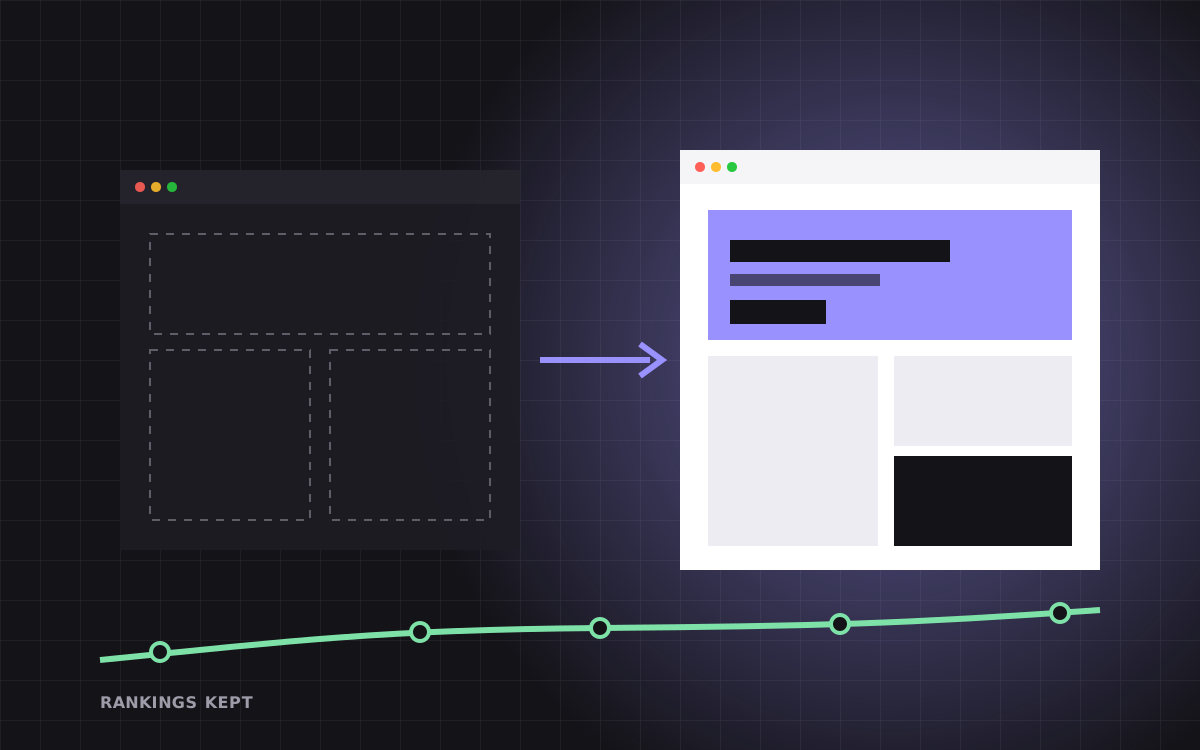
To redesign a Webflow site without losing SEO, take a snapshot of your current rankings and traffic, keep the URL of every page that earns visits, add a 301 redirect for any URL you change or remove, and carry over each page's title, description, headings and depth of content. Then launch on a quiet day and check Search Console every day for two weeks.
A redesign is safer than a platform migration because you stay on Webflow. Your domain, hosting and many settings stay put. But a redesign can still hurt rankings, because it is the moment teams delete old pages, merge sections, rename slugs and trim copy. Each of those changes is fine on its own. Done without a plan, they add up to a drop that takes months to recover.
This is the checklist we follow on every Webflow redesign. It works whether you are refreshing the look, rebuilding the class system or restructuring the whole site.
Step 1: Record a baseline before you touch anything
You cannot protect what you have not measured. Before design starts, export the data you will compare against after launch.
- Search Console, last 12 months. Export pages and queries with clicks, impressions and average position.
- Analytics. Top landing pages by sessions and by conversions, such as demo requests or sign ups.
- A full crawl. Every URL, its title, description, H1, status code and word count. A desktop crawler or an online audit tool does this in minutes.
- Backlinks. The pages other sites link to most. These carry authority you do not want to lose.
- Current speed. Core Web Vitals and PageSpeed scores for your key templates.
Save all of it in one spreadsheet. That spreadsheet becomes your redirect map, your content checklist and your proof that the redesign worked.
Also note any pages that bring in leads but little search traffic, such as a pricing page or a demo page. They may not show up high in a list sorted by clicks, but losing them, or making them harder to find, hurts just as much. Add them to the protected list too.
Step 2: Find the pages you must protect
On most sites a small number of pages bring in most of the search traffic and leads. Sort your baseline by clicks and by conversions, and mark the top 20 or so. These are your protected pages.
For each protected page, write down three things: the main search phrases it ranks for, the sections that answer those searches, and the internal links pointing to it. During the redesign, these pages can get a new layout, better images and sharper copy. What they should not lose is the substance that made Google trust them.
Change how a top page looks. Be careful about changing what it says.
We see this mistake often. A long service page with a detailed FAQ gets cut down to a hero and three cards because the new design feels cleaner. It looks great, then slips from position three to page two. If a section does not fit the new design, redesign the section, do not delete the content.
Step 3: Decide the fate of every URL
Go through every URL in your crawl and give it one of four labels:
| Label | What it means | Action |
|---|---|---|
| Keep | Same URL, new design | No redirect needed |
| Move | New URL, same content | 301 redirect old to new |
| Merge | Two thin pages become one stronger page | 301 both old URLs to the new one |
| Remove | No traffic, no links, no purpose | 301 to the closest relevant page, or let it 404 if nothing fits |
The safest default is "Keep". Only change a slug when there is a clear reason, such as a confusing URL or a structure change you really need. Never redirect everything to the home page. Google treats that as a soft 404, and the old page's relevance is lost.
Pay special attention to CMS collections. If you rename a collection's slug, for example from /posts/ to /blog/, every item in it gets a new URL. Webflow lets you add redirect rules with wildcard patterns for this, so one rule can cover a whole folder.
Step 4: Build without breaking the live site
Your live site should keep earning while the new one takes shape. There are two good ways to do this in Webflow:
Duplicate the site
Make a copy of the project and build the redesign there. When it is ready, you move the custom domain from the old project to the new one. This gives you a clean slate and an instant fallback. The trade off is that CMS content added to the old site during the build must be moved across before launch.
Redesign in place, page by page
For smaller refreshes, build new components and pages in the same project, keep them in draft or on a staging path, then swap them in. This keeps the CMS in one place but needs more care so nobody publishes half finished work.
Either way, use the Webflow staging domain to review everything, and keep the staging site out of search results. We cover the full build process in our Figma to Webflow checklist.
Whichever route you choose, set a content freeze date. From that day until launch, new posts and page edits go into a shared list, and they are added to the new site in one go before the switch. It sounds strict, but it is the simplest way to make sure nothing published during the build gets lost. A freeze of a week or two is usually enough.
Step 5: Carry over every SEO setting
Body copy is only part of what Google reads. Make a pass through every page and template and carry these across:
- Title tag and meta description. Improve them if you like, but keep the main phrase.
- One clear H1, and a heading structure that still covers the same subtopics.
- Alt text on images, especially on product and case study pages.
- Open Graph title, description and image for social sharing.
- Canonical settings and any pages you excluded from search on purpose.
- Structured data in page or template custom code, such as Organization, FAQ or Article markup.
- Internal links. A new navigation can quietly drop links to pages that used to be one click from the home page.
For CMS templates, bind the SEO title and description to fields, so every post and case study gets its own values. Our Webflow SEO checklist lists every field we check.
Step 6: Do not let the new design slow you down
Redesigns often add weight: bigger hero videos, new fonts, more animations, a chat widget or two. Speed is a ranking signal and a conversion factor, so treat it as part of the design, not an afterthought.
- Compress and size images to their real display size. Use modern formats where you can.
- Limit font families and weights. Each one is another download.
- Keep animations on transform and opacity, and do not hide your main heading until a page load animation finishes.
- Audit third party scripts. Remove the tools nobody uses any more.
- Reserve space for images and embeds so the layout does not jump while the page loads.
Test the new templates on a mid range phone, not just a fast laptop. Our guide on Webflow interactions that stay fast goes deeper on motion.
Step 7: Launch day
Pick a quiet weekday morning with your team around. Avoid Fridays and big campaign days. Then work through this list in order:
- Add all redirects before you publish or switch the domain.
- Publish to the custom domain and check that the home page, top pages and forms work.
- Test 20 old URLs from your redirect map. Each should land on the right page with one hop.
- Confirm the site is not set to block search engines.
- Submit the sitemap in Search Console.
- Send test leads through every form and check they arrive in the right place.
- Check analytics and tag tracking on the live domain.
Our full website launch checklist has every check we run, not just the SEO ones.
Step 8: The first 30 days after launch
Rankings often wobble for a week or two after a redesign while Google recrawls the site. That is normal. A drop that lasts longer almost always points to something you can fix.
- Daily for two weeks: check Search Console for new 404s and crawl errors, and redirect any old URL you missed.
- Weekly: compare clicks and positions for your protected pages against the baseline.
- After 30 days: compare leads and conversions by landing page. A redesign should improve these, not just look better.
If a protected page drops and stays down, compare old and new side by side. Usually a section was cut, a heading changed, or internal links went missing. Put the substance back and request indexing again.
Keep the old site, or a full export of it, for at least a few months. If a question comes up about what a page used to say, or a redirect target is unclear, you can check the original instead of guessing.
Who owns what during a redesign
Redesigns go wrong when everyone assumes someone else is watching SEO. Give each job a named owner before work starts:
| Job | Usual owner |
|---|---|
| Baseline export and protected page list | SEO lead or marketing lead |
| URL map and redirect list | SEO lead, checked by the developer |
| Copy for protected pages | Marketing, with a check against the baseline |
| Metadata, schema and alt text | Developer, using the spreadsheet |
| Speed and mobile checks | Developer |
| Forms, CRM and analytics | Marketing ops or developer |
| Post launch monitoring | SEO lead, with the developer on call |
On a small team one person may own several rows. That is fine. What matters is that every row has a name next to it, and that the redesign plan includes time for these jobs, not just for design and build.
Common redesign mistakes
- Treating the redesign as a design project only. Nobody owns SEO, so redirects and metadata are left until the last day.
- Deleting the blog archive. Old posts that still bring in traffic get dropped because they do not match the new style. Restyle them instead.
- Changing every slug. New URLs for the sake of tidiness create risk with no gain.
- Losing CMS content in a duplicate. Posts published on the old site during the build never make it to the new one.
- Forgetting forms and integrations. The new form looks perfect but is not connected to the CRM.
- No baseline. Without before numbers, nobody can tell if the redesign helped.
How we run Webflow redesigns
Every Kookies redesign starts with the baseline and the URL map, before any design work. We design in Figma, rebuild in Webflow with a clean class system and components, carry over every SEO setting and set redirects before launch. Then we watch Search Console with you through the first weeks.
Projects have fixed prices: a website of up to 5 pages starts at $2,500 and a large site of 6 or more pages starts at $3,000. Every project includes 30 days of support after launch for safe changes, like copy, image, colour and link updates, and fixes to what we built. See our Webflow development service, our SEO and AEO work, or tell us about your site.

Terms used: Webflow, Core Web Vitals