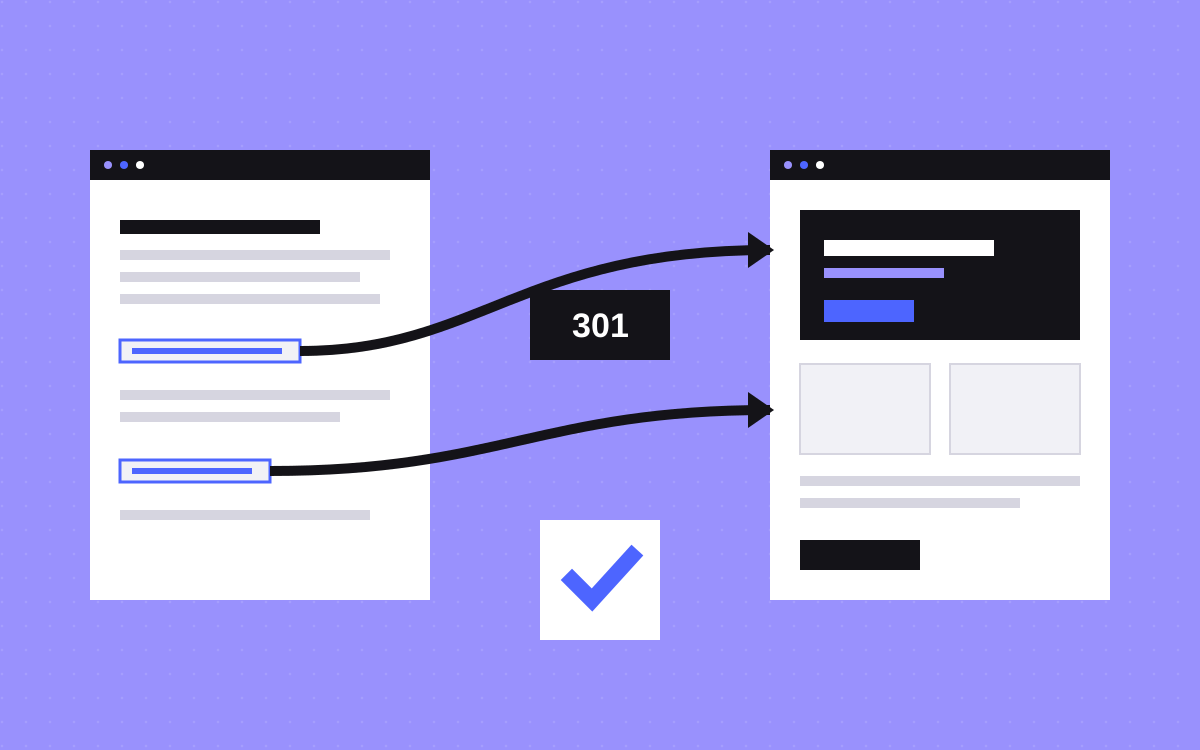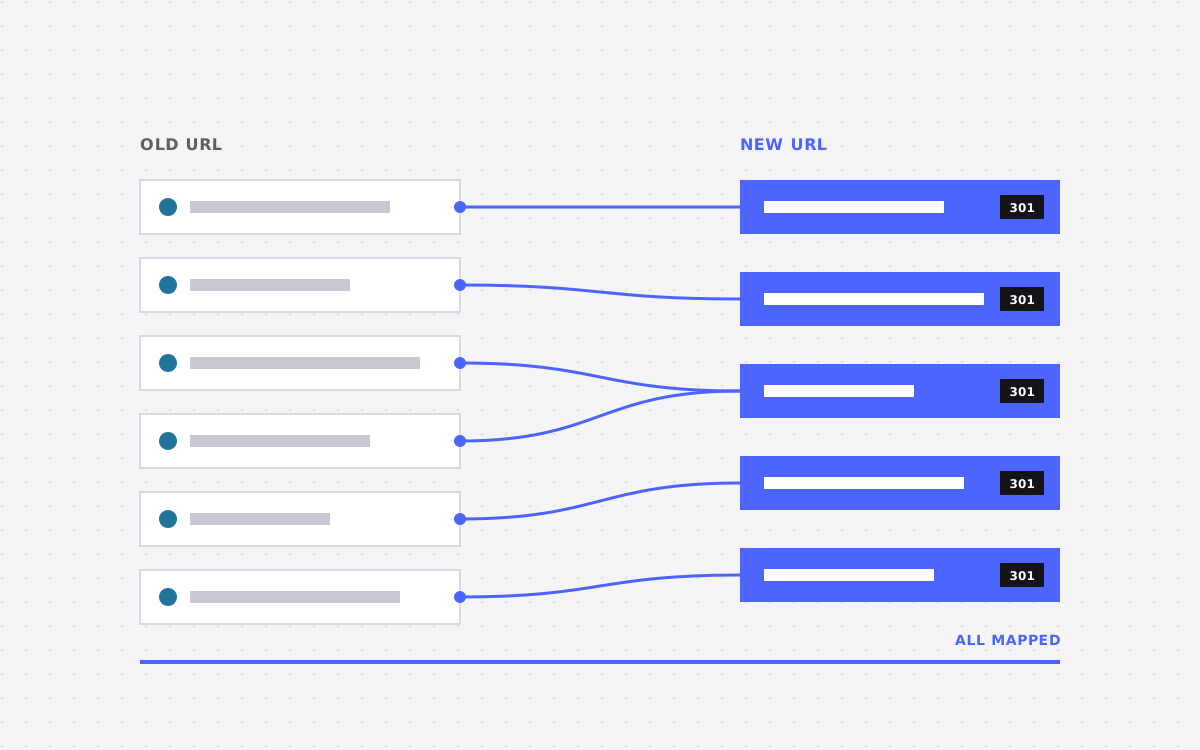
- You keep your rankings when every old URL either stays the same or sends a 301 redirect to the closest new page.
- Map every URL before you build. Crawl the old site, pull Search Console data and decide the fate of each page.
- Move titles, meta descriptions, headings, alt text and structured data across, not just the body copy.
- Launch on a quiet day, submit the new sitemap and watch Search Console daily for two weeks.
- A short dip is normal. A lasting drop almost always means missing redirects or missing content.
The short answer
To move from WordPress to Webflow without losing rankings, keep every URL that earns traffic, send a 301 redirect from every URL you change, and carry over the content and SEO settings that Google already trusts. Then check Search Console every day for the first two weeks and fix anything that breaks.
That is the whole job in one paragraph. The hard part is the detail. A typical WordPress site has more URLs than its owner thinks: tag pages, category archives, author pages, attachment pages, old landing pages from a campaign three years ago. Each one is a small promise to Google. A migration keeps those promises.
We have moved a lot of sites to Webflow, and the ones that drop in rankings almost never drop because of Webflow itself. They drop because pages went missing, redirects were skipped, or the copy was rewritten so hard that the page no longer matched what people searched for. This guide shows the process we use on every WordPress to Webflow migration.
Why rankings drop after a migration
Google ranks pages, not websites. When you migrate, you are asking Google to forget a set of old addresses and learn a set of new ones. If you make that easy, the switch is quick and mostly painless. If you make it hard, Google has to guess, and it guesses slowly.
These are the most common causes of a lasting drop:
- Missing redirects. An old URL with backlinks now returns a 404. The link value it built up over years goes nowhere.
- Redirects to the home page. Sending every old URL to the home page looks like a soft 404 to Google. It does not pass relevance.
- Thinner content. A 1,500 word guide becomes a 300 word page because it looked cleaner in the new design.
- Lost metadata. Titles and descriptions get reset to defaults like "Home" or the page name.
- Changed internal links. Old menus linked to key pages from everywhere. The new menu links to them from nowhere.
- Blocked crawling. The staging site setting that hides pages from search engines gets left on at launch.
Every item on that list is avoidable. None of it needs special tools. It needs a list, and someone who works through it line by line.
Step 1: crawl and map every URL
Start with a complete list of what you have. We combine three sources, because each one misses things the others catch.
- A crawl of the live site. A desktop crawler finds every page that is linked from somewhere on the site.
- Your XML sitemap. WordPress SEO plugins usually generate one. It often lists pages that are no longer linked in the menu.
- Google Search Console. Export the pages report for the last 12 months. This shows which URLs actually get impressions and clicks.
Put everything in one sheet. Add columns for clicks, impressions, backlinks if you have the data, and the page type. Then give each URL one of three decisions.
| Decision | When to use it | What happens |
|---|---|---|
| Keep | The page earns traffic or links and still matters | Same URL on Webflow, or a 301 to its new address |
| Merge | Two or three thin pages cover the same topic | One stronger page, with 301s from the others |
| Retire | No traffic, no links, no business value | 301 to the closest parent page, or a clean 404 if nothing fits |
This sheet becomes the source of truth for the whole project. Designers use it to know which pages exist. Developers use it to build CMS collections. On launch day, it becomes your redirect list.
Step 2: plan your URL structure in Webflow
Webflow handles URLs a little differently from WordPress, so plan them early.
Static pages can live at almost any path you like. CMS items, such as blog posts, live under a collection folder. If your WordPress posts sit at the root, like /my-post-title, they will usually move to something like /blog/my-post-title in Webflow. That is fine, as long as every old address redirects to the new one.
Keep slugs the same where you can
The slug is the last part of the URL. Even if the folder changes, keep the slug identical. It makes redirects simpler, it keeps your analytics readable, and it reduces the chance of mistakes.
Use patterns, not just single rules
Webflow lets you add 301 redirects in the site settings, and it supports pattern rules for whole folders. One pattern rule can move a few hundred blog posts from an old folder to a new one. Write single rules only for pages whose slugs change.
Decide on archives now
WordPress creates tag, category, date and author archives by default. Most of them have no search value. Decide which ones become real pages in Webflow, such as a category page that ranks, and redirect the rest to the blog index or the closest category.
Step 3: move the content, not just the words
Content is more than body text. Google reads every part of a page, so move every part.
- Page titles and meta descriptions. Copy them from your SEO plugin into Webflow's page settings or CMS fields. Keep the ones that already rank.
- Headings. Keep the H1 and the main H2s close to the original, especially on pages that rank for long questions.
- Images and alt text. Export images, compress them, and carry the alt text across. Webflow can serve modern formats, which helps speed.
- Internal links. Old links inside post bodies point to old URLs. Update them to the new addresses so visitors and crawlers skip the redirect hop.
- Structured data. If your plugin added schema, such as Article or FAQ, add the equivalent in Webflow with custom code or CMS-driven embeds.
- Canonical tags. Set them so each page points to itself on the new domain setup.
For blogs with many posts, we export posts from WordPress, clean the HTML, map fields to a Webflow CMS collection and import with a CSV or the API. Shortcodes and page builder markup do not import cleanly, so plan time to tidy those posts by hand or with a script.
If you want to improve the copy, do it in a second pass after the move settles. Changing URLs and content at the same time makes it hard to tell what caused any change in traffic.
Step 4: build with SEO in mind from day one
A migration is a good moment to fix the SEO problems WordPress sites tend to collect. Webflow gives you clean markup and fast hosting out of the box. You still need to set things up well.
- One H1 per page, then H2s and H3s in order. No headings used only for styling.
- Semantic HTML: real lists, real buttons, real links.
- Images sized for their slot, lazy loaded below the fold, with width and height set to avoid layout shift.
- Fonts loaded carefully, with only the weights you use.
- CMS templates that pull titles, descriptions and Open Graph images from fields, so every new post gets them right.
We also check Core Web Vitals on the staging site before launch, on a mid-range phone profile. Speed rarely makes a page rank on its own, but a slow page can hold back a good one. Our Webflow development process builds these checks into every page, so nothing waits until the end.
Step 5: launch day
Launch on a quiet day for your business. For most B2B sites, that is a Tuesday or Wednesday morning, not a Friday night.
- Add every redirect from your sheet in Webflow's settings, before you switch DNS.
- Turn off any setting that hides the staging site from search engines on the production domain.
- Connect the domain and confirm HTTPS works on both the root and the www version, with one redirecting to the other.
- Test 20 to 30 old URLs by hand, including your top traffic pages, a few blog posts and a few retired pages. Each should land on the right page with a single 301 hop.
- Submit the new XML sitemap in Google Search Console and Bing Webmaster Tools.
- Check analytics and tag manager fire on the new site, and that forms send to the right inbox or CRM.
Keep the old WordPress site available on a private address for a few weeks. If you find a missing page later, you can still copy its content.
Step 6: the first 30 days after launch
Most of the work that protects rankings happens after launch, not before it. For the first two weeks, we check Search Console every day. After that, twice a week until the numbers settle.
Here is what we watch:
- Page indexing report. Look for new "Not found (404)" entries. Each one is a missing redirect. Add it the same day.
- Performance report. Compare clicks and impressions with the same weekdays before launch. A dip of a few percent for a week or two is normal while Google recrawls.
- Top queries. Make sure your best queries still map to a sensible page.
- Crawl stats. A spike in crawling after launch is a good sign. Google is learning the new site.
A short dip is normal. A drop that lasts more than four to six weeks is a signal. In our experience it almost always traces back to a missing redirect or a page that lost its content.
If something does go wrong, the URL sheet makes it quick to find. Filter by the pages that lost clicks, check their redirects, and compare the old content with the new.
What a WordPress to Webflow migration costs
Cost depends on the number of pages, the size of the blog and how much design work you want. Here is how our pricing maps to common cases.
| Project | Typical scope | Price |
|---|---|---|
| Website | Up to 5 pages, redirects and SEO settings, 3 to 5 weeks | From $2,500 |
| Large site | 6 or more pages, blog or CMS import, 6 weeks or more | From $3,000 |
| Small fixes after launch | Extra redirects, content tidying, one-off tasks | $35 an hour |
First-time clients get $500 off projects of $2,000 or more. For a large blog or an unusual setup, we give a fixed quote after a 20 minute call, so you know the full number before we start. See pricing for the full list.
Should you migrate at all?
Not every WordPress site should move. Webflow is a strong fit if your team wants to edit pages visually, you are tired of plugin updates and security patches, and your site is mainly marketing pages, a blog and landing pages.
WordPress may still suit you if you rely on complex plugins with no Webflow equivalent, or you run a large store with deep custom logic. And if your team is developer-led and wants full control of the code, Astro with Sanity can be a better home than either. Our Webflow vs WordPress comparison goes through the trade-offs.
If you are unsure, talk to us. A 20 minute call is usually enough to tell you which way to go, and what the move would take.

Terms used: Webflow, Core Web Vitals