- Backlinks point at URLs. If a URL changes with no redirect, the link lands on a 404.
- Find the pages with the most links in the Search Console Links report and put them at the top of your redirect map.
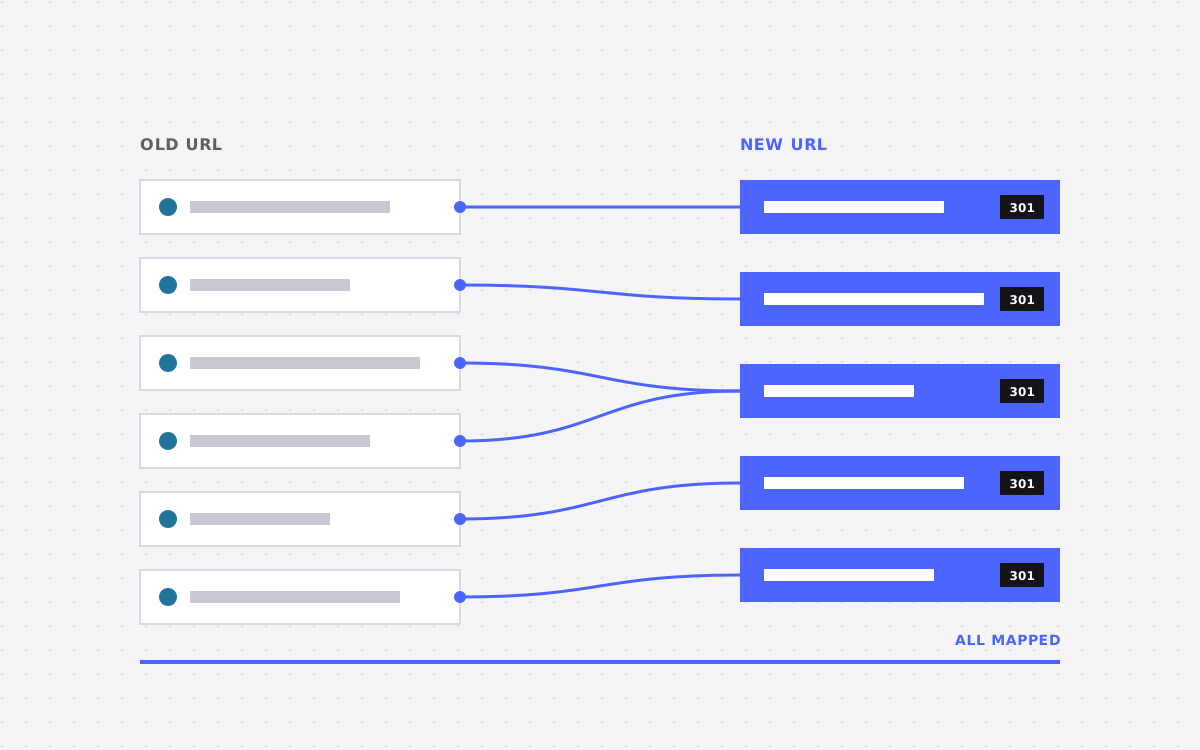
- Give each old URL one permanent redirect, in one hop, to its closest new page. Do not send everything to the home page.
- Keep redirects in place long term. Google says at least 1 year; we leave them for good.
- Update the links you control, then check every old URL after launch.
The short answer
To keep your backlinks working when you move or redesign a site, give every linked page a permanent redirect to its closest new page. Find those pages in the Search Console Links report, map each old URL to one new URL, send it there in one hop, and leave the redirects in place for good. Then update the links you control and check every redirect after launch.
Links point at URLs, not at your brand. If the URL changes and nothing catches it, the link lands on a 404 and its value is wasted.
Why backlinks break in a redesign
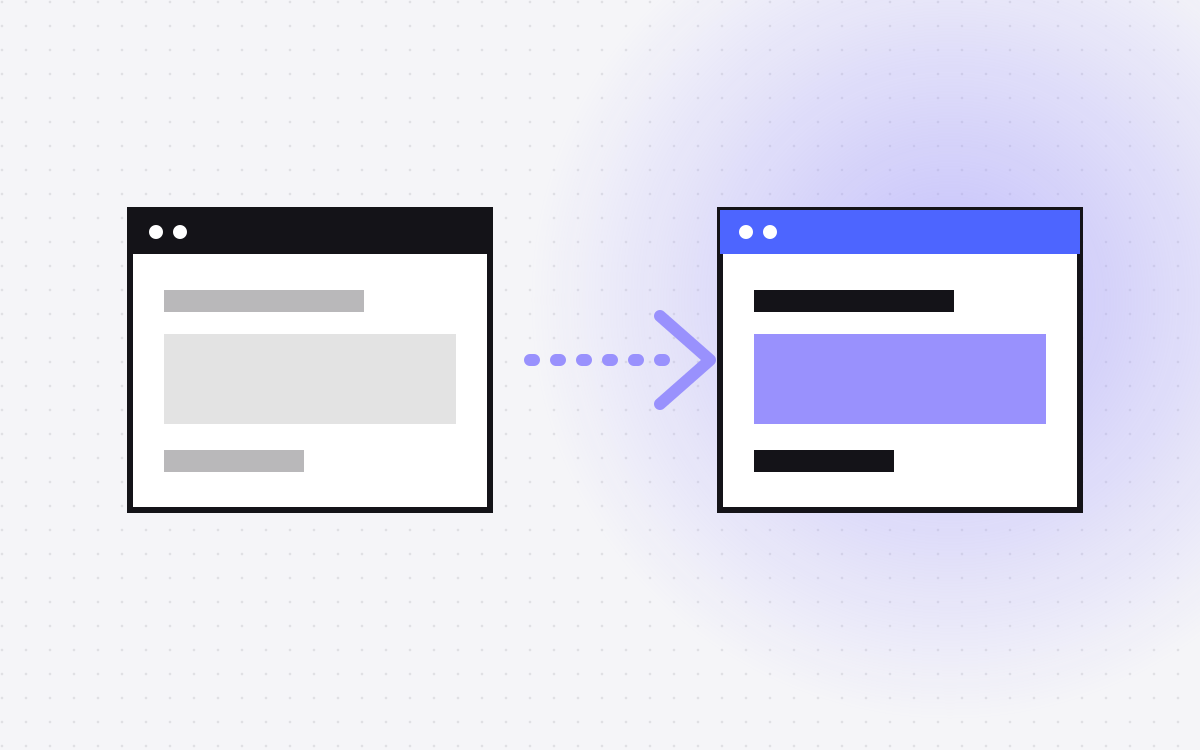
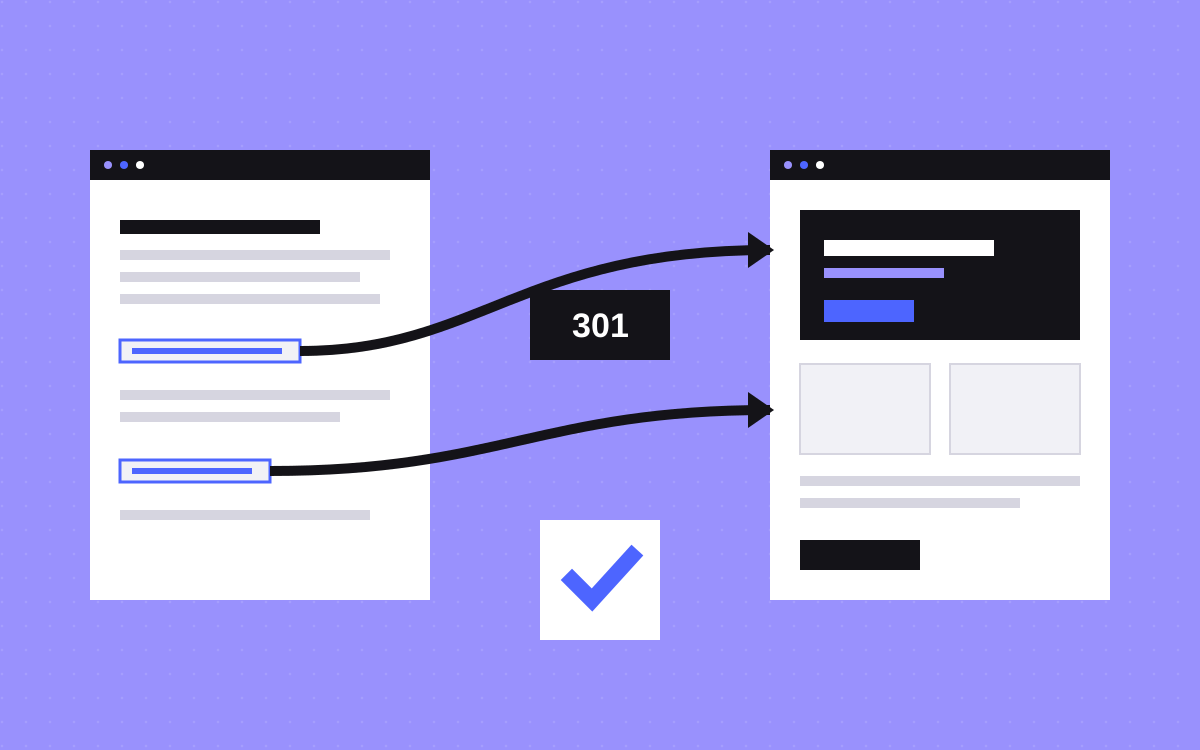
A new site often brings new URLs: a new blog folder, shorter slugs, merged service pages, a new domain. Every page another site links to is a promise that the address still works. Change the address without a 301 redirect and visitors from that link hit a dead end, and search engines lose the path to your new page.
Google's guide to site moves with URL changes puts it simply: map your old URLs to the new ones before the move. That map is the whole job.
Step 1: find your most linked pages
Start in Google Search Console. The Links report has a Top linked pages table under External links, which lists the pages on your site with the most backlinks. It also shows top linking sites and the link text they use.
- Export the data. Google lets you export link samples as CSV or Google Sheets.
- Know the limit. Google says the report is not a complete list of every link, so treat it as a strong sample.
- Add your own list. Pages you know get mentioned, old campaign pages, PDFs and press pages belong on it too.
These pages go to the top of your redirect map. Every other old URL still needs a redirect, but these are the ones you cannot get wrong.
Step 2: map each old URL to one new URL
Put every old URL in one column and its new home in the next. Pick the page that answers the same question. A service page goes to the matching service page, a post to the same post, a guide to the guide that replaced it.
Our redirect map template shows the columns we use, and the free redirect map tool matches old and new URLs for you and exports 301s for Webflow, Vercel or a _redirects file.
Merging two old pages into one new page is fine. Google's guide says consolidating pages is acceptable. What it warns against is the next point.
Do not send everything to the home page
It is tempting to point every old URL you cannot place at the home page. Google's site move guide says not to redirect many old URLs to one irrelevant page such as the home page, because it confuses visitors and may be treated as a soft 404.
If a page truly has no new home, find the closest parent page, such as the blog index for a removed post or the services page for a dropped service. A link that lands on something related still helps the person who clicked it.
Use permanent redirects, in one hop
- Permanent, server-side. Google's redirects guide says 301 and 308 mean a page has moved for good, and that a server-side redirect has the best chance of being read correctly. Google's site move guide adds that 301 redirects do not cause a loss in PageRank.
- Not temporary. A 302 tells Google to keep showing the old URL. Use it only for moves you plan to undo.
- No chains. Google advises redirecting to the final page directly. If an old URL already redirects once from a past redesign, update that rule so it goes straight to the new page instead of building a redirect chain.
- JavaScript last. Google says to use JavaScript redirects only if server-side or meta refresh redirects are not possible.
Keep the redirects in place
Redirects are not a launch week task. Google's site move guide says to keep them for as long as possible, generally at least 1 year. Old links on other sites do not expire after a year, so we leave redirects in place for good.
Watch for them on the next redesign. A redirect list that gets wiped when someone rebuilds the site breaks every old link at once. Keep the map in a file the team can find, next to the site's code or settings.
Update the links you control
A redirect catches the click, but a direct link is cleaner. Google suggests updating as many links as possible after a move. Start with the ones you can change yourself:
- Your own internal links, menus and footers.
- Social profiles, directory listings and review profiles.
- Email signatures, newsletter templates and saved replies.
- Ad campaigns and links in your ads accounts.
For the few outside sites that send you the most visitors, a short note asking them to update the link is worth sending. If you are also changing domain, our post on moving to a new domain and keeping your rankings covers the Change of Address step.
Check after launch
- Run your old URL list through the redirect checker. Every line should show one 301 or 308 to a page that returns 200.
- Fix any chains, loops, 302s and 404s it flags.
- Open your top linked pages from their real sources, by clicking the link on the other site.
- Watch the Search Console Links report and your 404 reports over the next weeks. Google says it can take a few weeks or more to start showing the new URLs.
What to do next
Before your next move or redesign, export your top linked pages, build the map and test it on staging. We handle this as part of every move we do on Webflow and Astro, and our Webflow SEO work covers the checks after launch. Want a second pair of eyes on your redirect map? Send it to us.

Terms used: Backlinks, Core Web Vitals