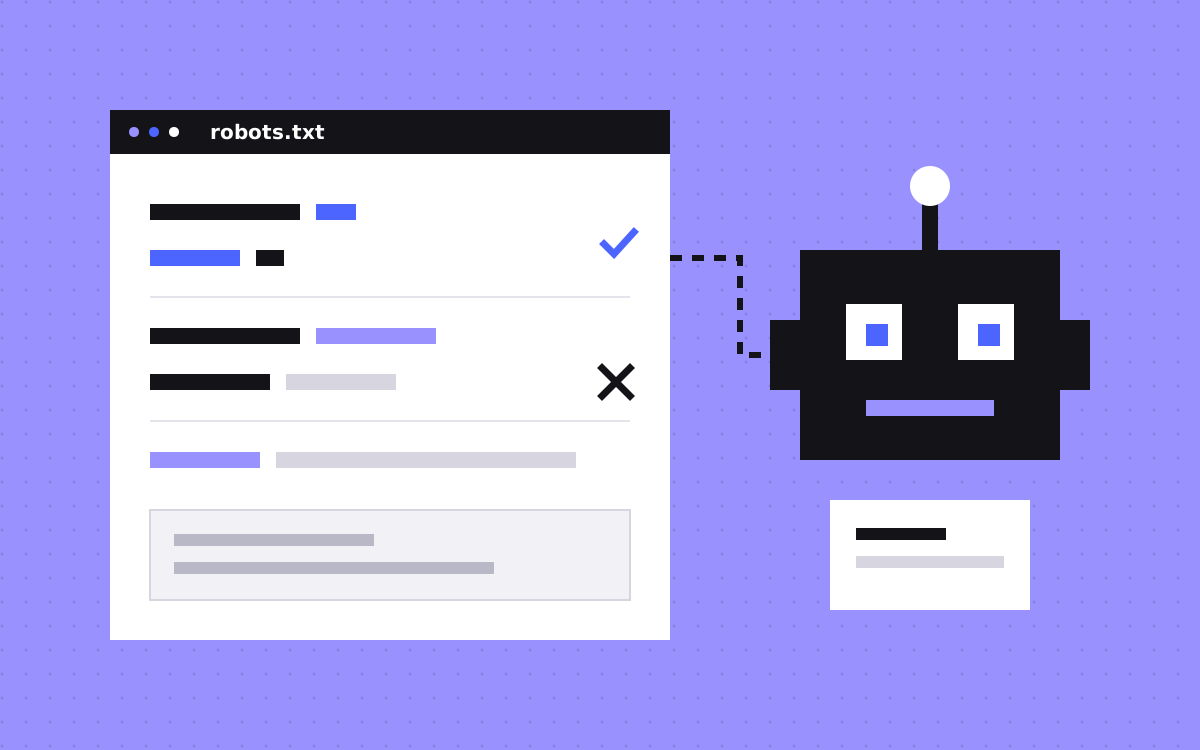
- robots.txt controls crawling, not indexing. Google says a blocked URL can still appear in search results if other pages link to it.
- To keep a page out of search, use noindex and leave the page crawlable. If robots.txt blocks it, the crawler never sees the tag.
- A marketing site's default file is short: allow every crawler, and add a Sitemap line with the full URL.
- The costly mistakes are a staging Disallow: / that goes live, blocked CSS or JavaScript, and a sitemap line with the wrong domain.
- Take AI crawler names from each owner's own page, and check the result in the robots.txt report in Search Console.
The short answer
For most marketing sites, robots.txt should allow everything, block almost nothing and point to your sitemap. It tells crawlers which URLs they may fetch. It does not remove a page from Google, and it does not keep anything private. To keep a page out of search results, use noindex and leave the page crawlable. To keep a page private, put it behind a password.
Most robots.txt problems come from doing too much with the file, not too little.
What robots.txt does, and what it cannot do
Google's introduction to robots.txt says the file is used mainly to manage crawler traffic to your site, and that it is not a mechanism for keeping a web page out of Google. Three limits follow from that:
- It blocks crawling, not indexing. Google says it might still find and index a disallowed URL if other places on the web link to it. The URL can then appear in search results without a description.
- It hides a noindex tag. Google's page on blocking indexing says a page with
noindexmust not be blocked by robots.txt. If the crawler cannot fetch the page, it never sees the tag, so the page can still show up. - It is a request, and it is public. Google says its own crawlers obey the file, but other crawlers might not. Anyone can open
/robots.txtand read the list of paths you tried to hide.
| You want to | Use |
|---|---|
| Stop crawlers fetching a folder of low-value URLs | A Disallow rule in robots.txt |
| Keep a page out of search results | noindex, with the page left crawlable |
| Keep a page private | A password, or do not publish it |
Our glossary covers robots.txt and noindex in more detail.
A sensible default file
A marketing site usually has nothing to block. Every page is meant to be found. So the default file is short:
User-agent: *
Allow: /

Sitemap: https://www.kookies.io/sitemap-index.xml
The first two lines say every crawler may fetch every path. Google's guide to writing the file notes that everything is allowed unless you say otherwise, so the Allow line is there for people reading the file, not for crawlers. That is close to what kookies.io serves. Ours also names a few AI crawlers with Allow: /, to make the choice plain.
Add a Disallow rule only when there is a real reason, such as internal search result pages or endless filter URLs that waste crawl time. A few rules from Google's docs to keep in mind when you do:
- The file must be named
robots.txtand sit at the root of the site. One file per site. - It applies only to the protocol, host and port it is served from. A subdomain such as
blog.orapp.needs its own file. - Paths are case-sensitive.
/Pricingand/pricingare different paths. - When two rules match a URL, Google uses the most specific one, based on the length of the path. If they tie, the least restrictive rule wins.
- Google supports four fields:
user-agent,allow,disallowandsitemap. It says other fields such ascrawl-delayare not supported.
The matching rules are set out in how Google interprets robots.txt.
The sitemap line
The Sitemap line tells crawlers where your sitemap lives. Google's guide says it is optional, you can have more than one, and the URL must be fully qualified. So write the full address with https:// and your real host, not a path like /sitemap.xml.
Check that the line points at the live domain. A sitemap line that still names a staging address after launch is easy to miss, because the file looks fine at a glance. What belongs inside the sitemap is a separate question, covered in our post on XML sitemaps.
The mistakes we see most
- A staging block that goes live. Staging sites often carry
User-agent: *andDisallow: /, which asks every crawler to stay away from every page. If that file ships with the launch, the new site asks not to be crawled. Open/robots.txton the live domain on launch day. - Blocking CSS and JavaScript. Google says not to block script or style files if their absence makes the page harder for its crawler to understand, because it will not do a good job of analysing pages that depend on them. Old rules that block asset folders are the usual cause.
- Disallow plus noindex on the same page. The block stops the crawler from seeing the tag. Pick one. For a page that should leave search results, that is
noindex. - Using it to hide private pages. The file is public, so a
Disallowline is a signpost. Use a password. - Blocking redirected URLs after a migration. If old URLs are disallowed, crawlers cannot follow them to the new pages. Leave them crawlable so the redirects can be seen. Our redirect checker shows where each old URL ends up.
- A broken file. Google treats most 4xx replies for
/robots.txtas if no file exists, so nothing is restricted. A server error is worse: Google says it stops crawling the site for the first 12 hours while it retries the file.
AI crawlers: use the names their owners publish
AI companies run several crawlers each, for different jobs. Copy the names from the owner's own page, not from a list on a blog, because the names and their meaning change.
- OpenAI. Its bots page lists GPTBot for training, OAI-SearchBot for ChatGPT search and ChatGPT-User for actions a user starts. It says each setting is independent, so you can allow OAI-SearchBot and disallow GPTBot.
- Anthropic. Its help page lists ClaudeBot, Claude-SearchBot and Claude-User, says they honour robots.txt, and says to add rules on each subdomain you want to opt out.
- Perplexity. Its docs list PerplexityBot for its search results and Perplexity-User for user requests, which it says generally ignores robots.txt.
- Google. Google-Extended is a robots.txt token, not a separate crawler. Google says it controls use for Gemini training and grounding, and does not affect inclusion or ranking in Google Search.
Blocking is rare among large software companies. In our study of AI crawlers on the Forbes Cloud 100, checked 9 November 2026, only 6 of 94 sites block one or more AI crawlers from their home page, and 21% of the readable files name an AI crawler at all.
If you want to appear in AI answers, do not block the search bots by accident. Our free AI crawler checker reads your file and shows which bots it allows. A crawler that is allowed in still has to be able to read the page, which is a separate test: see can AI crawlers see your site.
robots.txt on Webflow
Webflow writes the file for you from a settings field. Its help page on robots.txt rules gives the steps: go to Site settings, then SEO, then Indexing, add your rules, save and publish. Nothing changes on the live site until you publish.
- The sitemap line is added for you. Webflow says it adds a link to your sitemap in robots.txt by default, with a toggle to remove it.
- The staging subdomain has its own switch. Webflow's page on disabling indexing says that setting Staging indexing to off publishes a separate robots.txt on the webflow.io subdomain only. So the staging block does not need to be in the rules you write for the live domain.
- Bot groups have toggles. The same page describes Traffic control toggles for search engine crawlers and AI bots, which generate rules for a list of known bots. Both are allowed by default. Webflow warns that turning them off may reduce your visibility in search and AI search, so read which bots are in each group before you touch them.
- Single pages use a different switch. To keep one page out of search, Webflow points to the Sitemap indexing toggle in Page settings, which adds a noindex tag, not to a robots.txt rule.
Webflow's help also notes you need a Site plan or a paid Workspace plan to add robots.txt rules. We set this up as part of Webflow SEO work.
robots.txt on Astro
In Astro, robots.txt is a plain file. Put it in the public/ folder. Astro's project structure docs say files in that folder are copied into the build untouched, and name robots.txt as an example. That is how this site does it.
If you use Astro's sitemap integration, the sitemap line should point at sitemap-index.xml. The integration docs also show a second option: a src/pages/robots.txt.ts route that builds the file from the site value in your config, so the domain in the sitemap line is never typed by hand.
Because the file is in the repo, a staging block can be merged to production like any other change. If preview builds need a block, set it per environment, and keep the committed file as the production one.
Test it in Search Console
First, open https://yourdomain.com/robots.txt in a private browser window and read it. Then check what Google has. Search Console has a robots.txt report that lists the robots.txt files Google found for your property, with:
- the fetch status, such as Fetched or Not Fetched
- when Google last checked the file
- the file size
- any errors or warnings. Google says errors prevent a rule from being used.
The report is available for Domain properties and for URL-prefix properties at the domain level. After you fix a problem, you can request a recrawl of the file from the report. Google says it generally caches robots.txt for up to 24 hours, so a change may not apply at once.
To check one page, use URL Inspection in Search Console. It shows whether robots.txt allows Google to crawl that URL.
What to do next
Open your live robots.txt now. Look for a Disallow: / that should not be there, rules that block scripts or styles, and a sitemap line with the wrong domain. If you block any page that also carries a noindex tag, remove the block. Then check the report in Search Console.
If you want a second pair of eyes, robots.txt is one of the first things we read in our SEO and AEO work. Send us your URL and we will tell you what the file is doing.

Terms used: robots.txt, Webflow