- You can move your website off HubSpot CMS and keep using the HubSpot CRM. They are separate decisions.
- Forms and tracking are the heart of this move. If they break, your sales team feels it first.
- HubSpot redirects only work on domains HubSpot hosts, so rebuild them in Webflow before you switch.
- Check for HubSpot features you rely on, such as smart content and memberships, and plan what replaces them.
- If your team runs everything from HubSpot and likes it, staying can be the better choice.
The short answer
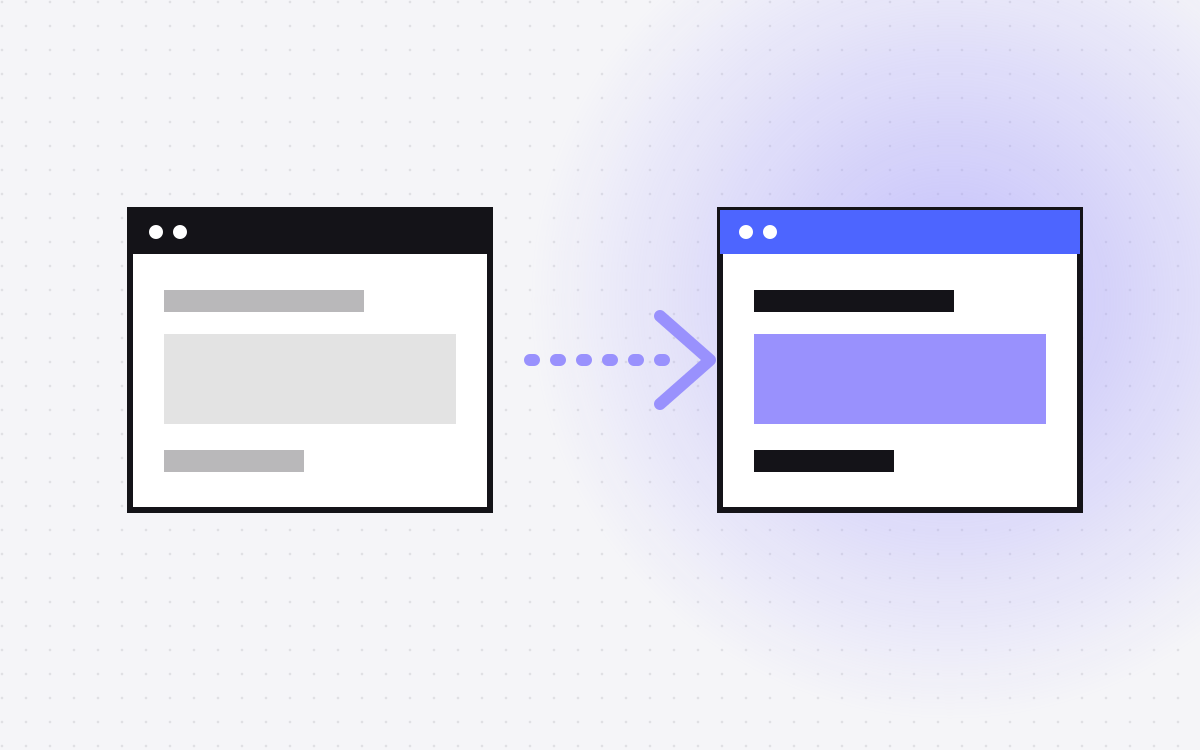
To move from HubSpot CMS to Webflow, you audit the site, export your content, rebuild the design in Webflow, connect HubSpot forms and the tracking code, rebuild your redirects, and then point the domain to Webflow. The CRM stays where it is, with your contacts, deals and email. Only the website moves.
Still deciding? Webflow vs HubSpot CMS sets out when each one fits, including when to stay.
When it makes sense, and when it does not
Teams usually move for more design freedom, cleaner front-end code, or better control of motion and page speed. It may not be worth it if:
- Your marketers build pages and emails happily in one tool.
- You rely on smart content, built-in A/B tests or reporting tied to CMS pages.
- You use HubSpot memberships or gated content heavily.
- No one will own the connection between the two systems.
You can also take a smaller step. Move the main website and keep landing pages tied to campaigns on HubSpot, on a subdomain such as go.yourdomain.com. Just be clear about who owns what, as two systems mean two sets of styles to keep in line.
Step 1: list what HubSpot does for you today
The site is the easy part. The audit needs to find what is connected to it:
- Every URL, with title, description, H1 and traffic. Include blog posts, landing pages and thank you pages.
- Every form, with where it appears and what it triggers.
- Workflows, lists and reports that depend on a specific form or page.
- CTAs, chat, meeting links, smart content and A/B tests.
- Emails and ads that point to pages on the site.
- Subdomains connected to HubSpot, such as a blog or landing page domain.
- Files in the HubSpot file manager that are linked from elsewhere, such as PDFs in old emails.
That last one is easy to miss. If you leave HubSpot's CMS but keep the CRM, ask how your files will stay available.
Step 2: export your content
HubSpot has export tools for web content. You can export blog posts as a spreadsheet from the blog dashboard, and request HTML files for pages, blog posts and templates. Its URL redirects tool can also export your current redirects as a CSV. Get all three, even if you only use part of them. They are your backup.
The exported templates use HubSpot's own template language and modules, so they will not run in Webflow. Treat them as a reference. The design gets rebuilt.
Step 3: rebuild in Webflow
Rebuild your design with reusable components and a clear class system like Client-First. It is a good time to merge old landing page templates that have drifted apart. Set up CMS collections for blog posts, authors and tags, then import your posts by CSV or through the API. Our Webflow CMS guide covers the planning.
HubSpot blog images often live on HubSpot's own file addresses. Download them and move them to Webflow, or they may break later. Add alt text as you go.
Step 4: connect forms
You have two main options:
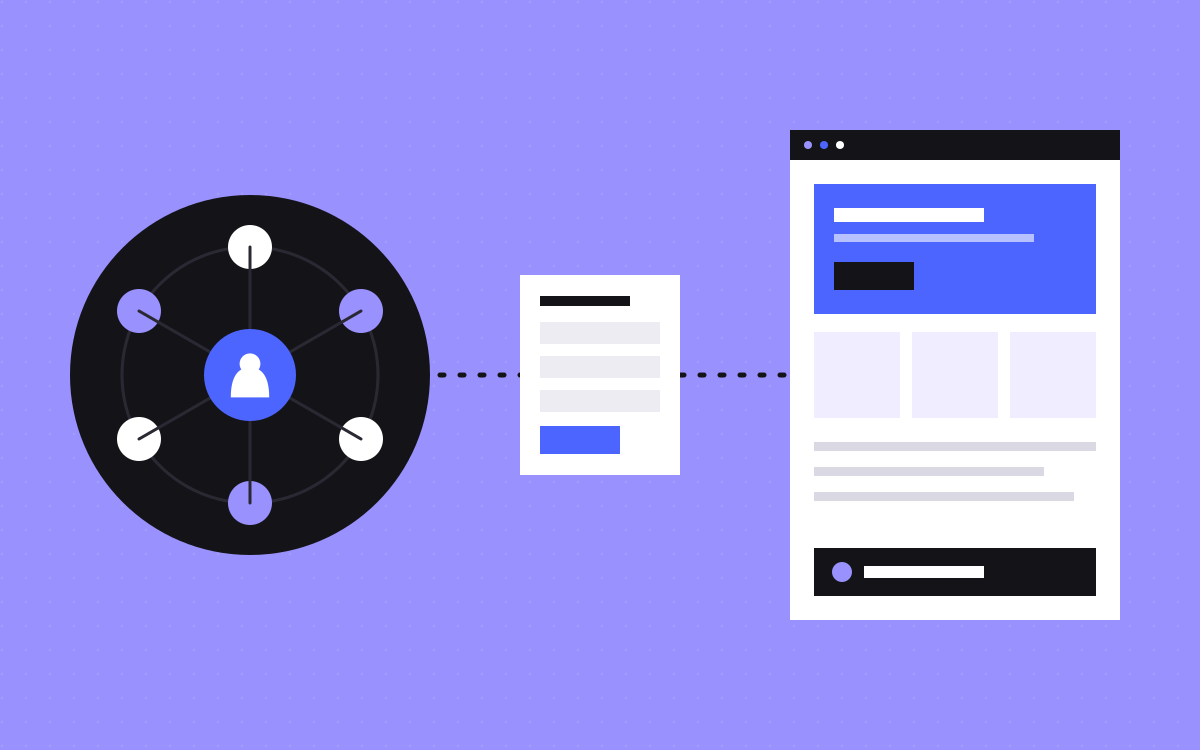
- Embed HubSpot forms. Your form stays in HubSpot, and so do its fields, workflows and reporting. This changes the least. The look is limited by what you can style, and the form script adds weight to the page.
- Use Webflow forms and send data to HubSpot. You get full design control. You need to connect the submissions to HubSpot and test the mapping of each field. See HubSpot and Webflow and our integrations work.
Whichever you choose, check hidden fields, consent wording, UTM capture and lead source. Then submit a test on each form and follow it all the way into the CRM, the workflow and the sales notification.
Workflows or lists triggered by a certain form may need updating if the form changes. Find them in the audit, not after launch.
Step 5: tracking, chat and meetings
Add the HubSpot tracking code to Webflow's site-wide custom code, so visits are still linked to contacts. Webflow custom code needs a paid site plan. Things that rely on the tracking code, such as HubSpot chat, need testing on staging too. Meeting links and CTAs can be replaced with embeds or plain links.
Consider consent while you are here. If your HubSpot cookie banner was handling this, confirm what will handle it on the new site. Then check that GA4, Tag Manager and ad pixels all still fire as you expect.
Step 6: rebuild redirects
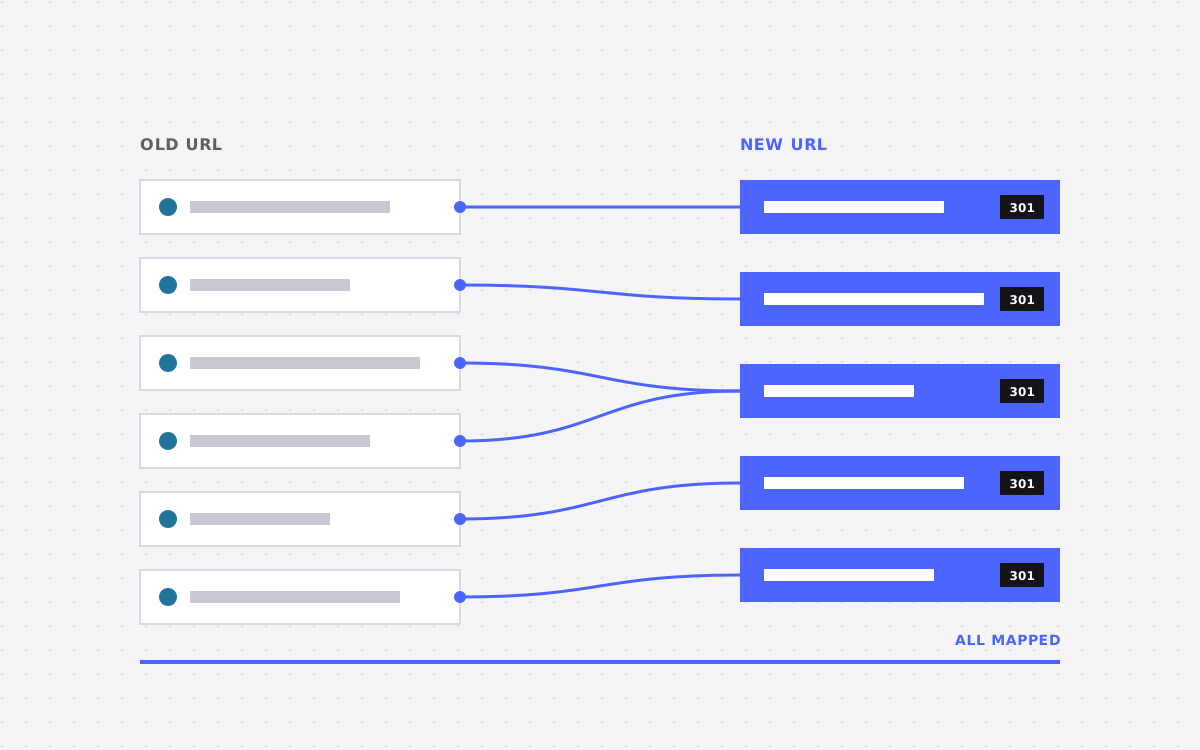
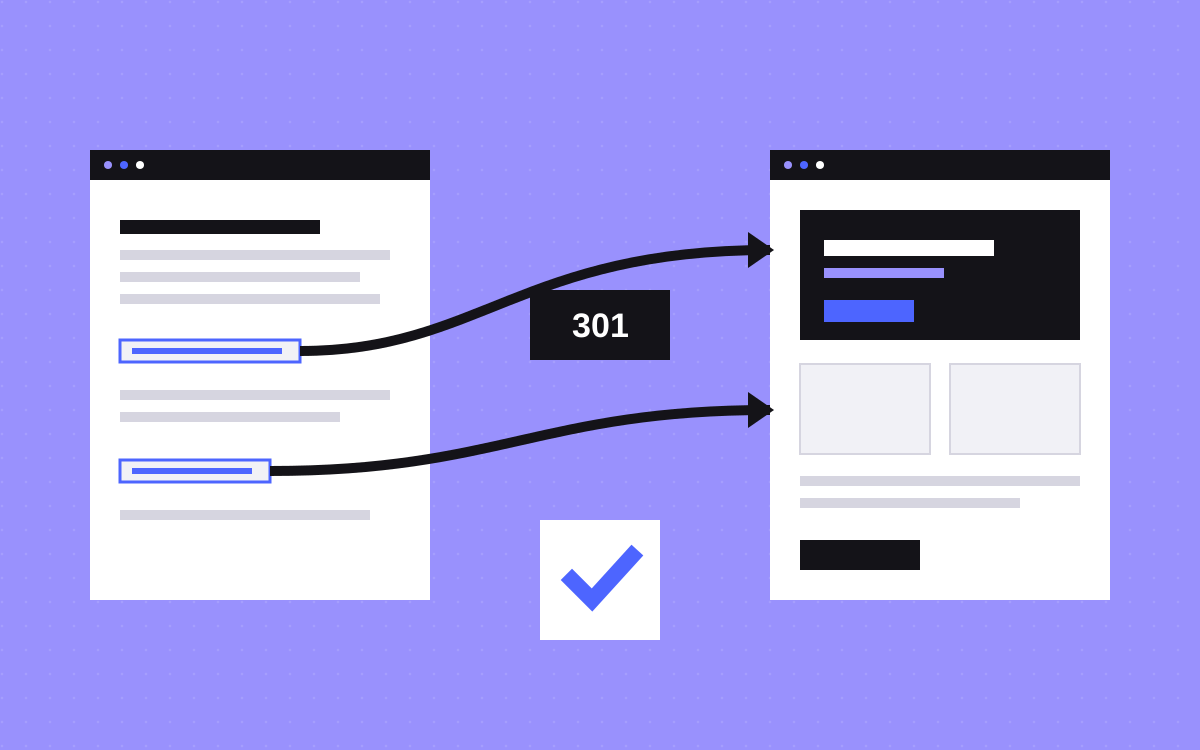
HubSpot's docs are clear that its redirects only work on domains it hosts. Once your domain points to Webflow, those rules stop applying. So rebuild the ones you still need in Webflow, together with your new redirect map.
Watch HubSpot's URL patterns as well. Blog tag pages and paginated blog URLs, for example, may have no direct match, so decide where each of them should go. Avoid redirect chains: if an old rule points to a URL that also moves, update it to the final address.
Step 7: launch and check
- Test all forms, redirects and tracking on staging.
- Compare titles and descriptions with your audit.
- Update links in live emails, ads and automated sequences.
- Switch the domain with a DNS change, at a quiet time. In HubSpot, make sure you understand what happens to that connected domain.
- Submit the new sitemap in Search Console.
- Check new leads in the CRM on the first day, with the sales team.
Do not end your CMS subscription until you are happy with the result and have your exports. Check with HubSpot how a plan change affects your other tools and hosted files.
What to do about HubSpot-only features
- Smart content. Decide if it earns its place. Simple needs may be met with separate landing pages. Real personalisation needs another tool.
- A/B tests. Use a testing tool, or Webflow Optimize if it suits you. Read what an A/B test needs first.
- Memberships. A tool like Memberstack may fit. Check its features against your needs.
- Reports by page. Reports tied to HubSpot pages will change. Tell the people who read them before launch.
What usually goes wrong
- Lead source breaks. Reports show a change in sources because tracking or UTM capture was missed.
- Old PDFs vanish. Emails sent years ago link to files that are no longer there.
- Sales is not told. The team sees changes in leads with no warning.
- Forgotten subdomains. A landing page domain keeps pointing to an old setup.
- Unknown ownership. Marketing, sales and the web team each assume another team checked the forms.
What to do next
Send us your site and tell us which HubSpot tools you use. We will list what moves, what connects and what needs replacing, and give a fixed price. See Webflow development and integrations, or contact us.
More reading: launch checklist and WordPress to Webflow migration.

Terms used: Webflow, Core Web Vitals